

PDF Converter Tips for Turning Scanned Papers Into Editable Word Files
Scanned papers are just pictures, so you can’t edit them until OCR reads the text. This guide covers how to prepare a clean scan, pick a pdf converter that can read images, convert step by step, fix messy tables and fonts, and stay careful with sensitive documents.

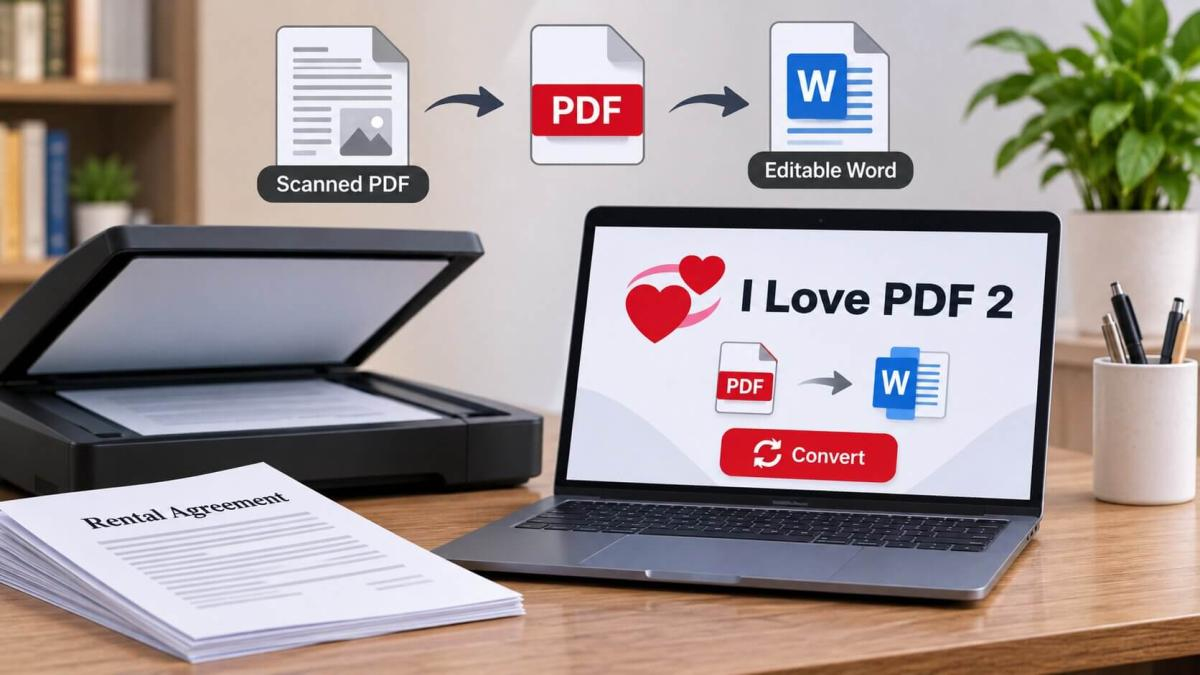
Last month’s rent agreement is sitting in your inbox as a scan. Two clauses need changing, and the other person wants it back by evening. You click on a line to edit it. Nothing. Of course nothing, it’s a picture. Typing five pages out again isn’t a plan, so you go looking for a pdf converter that can actually read the page. Fair enough. Only catch is that scans can be stubborn, and the prep you do beforehand counts for nearly as much as the tool.
Why a scanned page won’t let you edit it
A scan is a photo. Scanner, phone camera, photocopier, same thing. The page looks like words to you, but the computer only sees dots.
To turn those dots back into text, something has to read them and guess the letters. That’s OCR. Skip it and you can end up with a Word file that’s just the picture sitting inside a document. It looks right. Try editing it and you’ll find out.
What to look for in a pdf converter
For scans, the tool has to read images, not just repackage ordinary PDFs. The pdf converter at iLovePDF 2 turns PDFs into Word files, either .doc or .docx, and OCR is listed on the homepage as built in. Worth testing with one page first, because results vary from scan to scan whatever tool you use.
Not everything arrives as a PDF. A phone photo is usually a JPG, and there’s a separate JPG to Word tool for that, with PNG and TIFF versions too. If you’ve photographed ten pages, merge them into one PDF first and convert once. Ten separate conversions is a headache you don’t need.
Get the scan right before you touch a converter
Most disappointing results come from the scan, not the tool. Two minutes of care here saves a lot of fixing later.
Flat paper, even light, camera straight above. That’s most of it. A curled corner or a shadow across the page makes letters wobble, and tilted lines get misread. Keep your thumb out of the shot, too.
Many phones have a document scanner tucked inside the notes or files app. It straightens the page for you. Use it if yours does.
Can you read the text comfortably on screen at normal size? If you’re squinting, the software will squint harder.
Dark print on white paper does best. Faded photocopies and coloured paper are rough going. If the original is still around, rescan that rather than a copy of a copy.
Converting, step by step
Screens differ from tool to tool. The routine doesn’t.
- Zoom in and check every line is readable.
- Straighten any sideways pages.
- Pick PDF to Word for a scanned PDF, or the image to Word tool for photos.
- Upload, run it, wait.
- Download the Word file and read it next to the original.
That last one gets skipped, and it shouldn’t. Dates, names and amounts are where errors hide, and a wrong digit in an agreement is a real problem, not a typo. If you’re offered a choice of format, .docx is usually the safer pick. Longer files take a while, so give the pdf converter a minute before you decide it’s stuck. Got a huge file? Shrink it first so the upload doesn’t time out.
When the Word file comes out messy
It will, at least a bit. Tables are the usual victim. Columns drift, cells merge, and a tidy price list turns into a paragraph. Fonts change as well, because the tool picks the closest match it can find.
Handwriting? Honestly, don’t count on it. Neat print converts well. Handwriting often doesn’t.
You’ll also spot odd characters, like a zero where there should be an O, or a 1 pretending to be an l. Find and Replace helps with repeats. Numbers you just have to read slowly. Headers and page numbers sometimes wander into the body text too, so glance at the top and bottom of each page.
One more thing. Scanned text often has a hard line break at the end of every line. Switch on paragraph marks in Word and clear them, otherwise everything reflows strangely once you start editing. Save a copy before any big changes.
One page badly scrambled? Don’t redo the lot. Rescan that page in better light, split it out, and run it through the pdf converter by itself.
And if Word shows you a picture and no text, OCR didn’t happen. Run it, then convert again.
Be careful with sensitive papers
Online converters send your file to a server. All of them do. Scanned papers tend to be more personal than typed ones: contracts, ID cards, bank letters. They can also hide things you forgot about, like an address tucked in a corner, so look over the page before uploading. Read the privacy policy, keep the original scan untouched, and use an offline program for anything truly private. Trying a new tool? Test it on a page with no personal details.
Mistakes that waste time
- Converting before checking the scan
- Trusting the output without reading it
- Working on your only copy
- Redoing a whole file because one page was bad
- Photographing in dim light
Frequently Asked Questions
Can I turn a scanned PDF into an editable Word file?
Yes, if the tool has OCR, which reads the text off the image. Clearer scans give better results.
Do I need to sign up?
The homepage doesn’t mention one. Pick a tool, upload, download.
Will my tables and fonts stay the same?
Not perfectly. Tables and fonts are the first things to go wonky, so look them over.
Can it read handwriting?
Not reliably. Neat print is fine. With handwriting, expect to retype some of it.
Can I convert phone photos instead of scans?
Yes. JPG, PNG and TIFF each have their own converter to Word. Good light helps a lot.
Is it safe to upload personal documents?
Be careful with any online tool. Check the privacy policy, keep a backup, and keep very sensitive papers offline.
Conclusion
Nobody enjoys retyping a scan. Clean up the scan first, use a tool that can read images, then compare the Word file with the original line by line. A pdf converter does the heavy part, sure, but it won’t catch a wrong amount or a swapped date. You will. Try a harmless page before the real one, and if it behaves, go ahead with the rest. iLovePDF 2 has the tools when you’re ready.




Comments (0)