

How to Convert Large OST Files to PST – Complete Guide
Learn how to convert large OST files to PST using Outlook or professional converter software. Explore preparation tips, file-size challenges, and conversion steps.


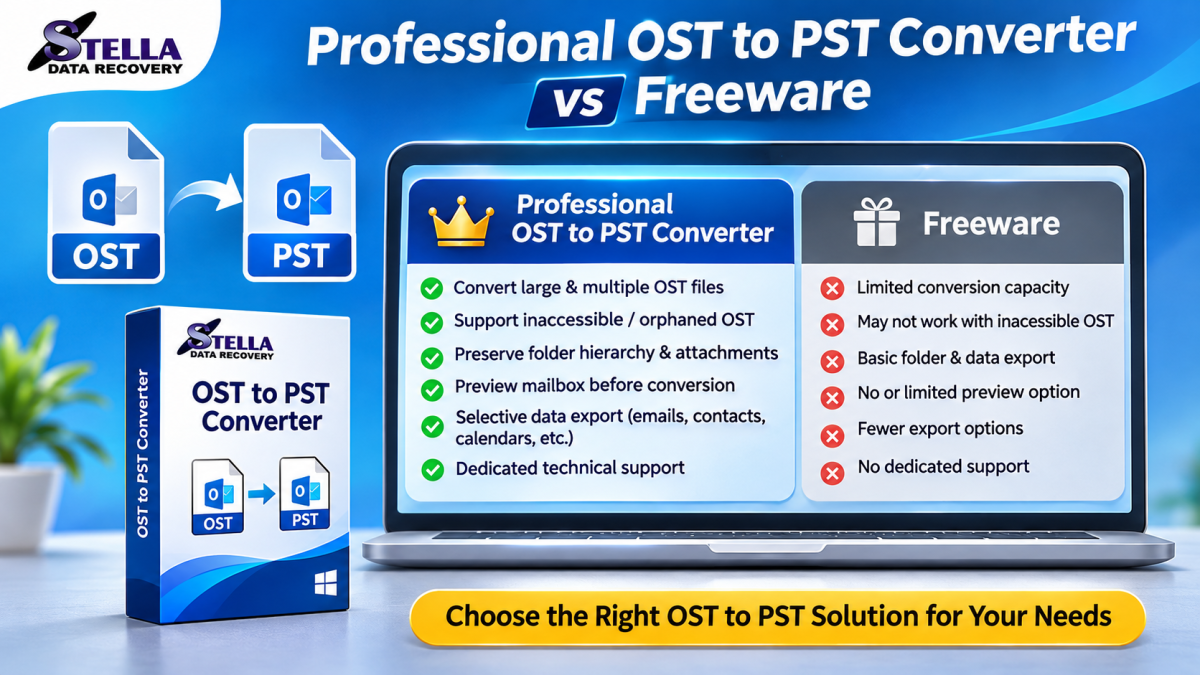
Does your Outlook mailbox contain a large OST file that you need to convert into PST format? Large mailbox files can create challenges during email migration, archiving, and data management. Conversion may take longer, require additional storage, or fail if the computer does not have sufficient resources.
An OST (Offline Storage Table) file stores locally synchronized Outlook mailbox information, while a PST (Personal Storage Table) file is commonly used to store, transfer, and archive Outlook data.
Converting a large OST file to PST format can help users preserve supported mailbox information and make it easier to access through compatible Outlook environments. However, choosing the right conversion method and preparing the computer properly are important.
This guide explains how to convert large OST files to PST, what precautions to take, and which software features can help simplify the process.
Why Do Large OST Files Need to Be Converted to PST?
Large OST files can contain years of emails, attachments, contacts, calendar entries, and other mailbox information.
Users may need to convert them for several reasons:
1. Email Migration
When moving to another computer or Outlook environment, users may want to transfer their existing mailbox information. PST format can provide a convenient way to move supported mailbox data.
2. Email Archiving
Businesses often need to preserve historical email communication. Converting older mailbox data into PST format can help organize email archives by year, department, or project.
3. Accessing an Old Outlook Mailbox
If the original Outlook profile becomes unavailable, accessing its associated OST file through normal Outlook procedures may be difficult. Some standalone converters can process supported OST files directly.
4. Creating Additional Backups
Large mailboxes may contain important business correspondence, invoices, customer conversations, and attachments. Exporting supported mailbox data into PST format can provide an additional archive.
5. Managing Mailbox Data
A large mailbox can be difficult to organize. Selective conversion or separate PST archives may help users manage historical emails more efficiently.
Common Challenges When Converting Large OST Files
Before starting the conversion, understand the problems that can occur with large mailbox files.
-
Insufficient storage: The computer may not have enough free disk space for the output PST and temporary processing files.
-
Limited memory: Large files may require significant system memory during scanning and conversion.
-
Long processing time: A mailbox containing thousands of emails and large attachments may take longer to process.
-
Incomplete synchronization: The OST file may not contain every item stored on the original mail server.
-
File corruption: A damaged OST file may prevent normal scanning or conversion.
-
Software restrictions: Some converters have documented file-size limits or licensing restrictions.
Preparing the computer and selecting compatible software can reduce avoidable problems.
How to Convert Large OST Files to PST
There are two common methods, depending on whether the original Outlook profile is accessible.
Method 1: Use Outlook's Built-In Export Feature
If Outlook can open the original mailbox and display the required data, its built-in export functionality may be sufficient.
Step 1: Open Microsoft Outlook
Start Outlook using the profile associated with the OST file.
Step 2: Check mailbox synchronization
Confirm that the required emails and folders are available. If the mailbox is online, allow synchronization to finish before exporting.
Step 3: Open the Import/Export option
Navigate to the File menu and select the Import/Export option, where available.
Step 4: Select Export to a File
Choose the option to export mailbox information to a file.
Step 5: Choose Outlook Data File (.pst)
Select PST as the output format.
Step 6: Select mailbox folders
Choose the folders you want to export. Include subfolders if you want to preserve the available folder structure.
Step 7: Choose the destination
Select a drive with sufficient free space. For a large mailbox, avoid saving the output to a nearly full system drive.
Step 8: Complete and verify the export
Allow the export to finish. Open or import the PST into a compatible Outlook environment and verify important folders, messages, and attachments.
Important: This method requires an accessible Outlook profile and mailbox. It is not a general solution for opening orphaned OST files without their original profile.
Method 2: Use Professional OST to PST Converter Software
If the original Outlook profile is unavailable, or you need standalone OST processing, a compatible third-party converter may be useful.
Follow this general workflow:
Step 1: Choose compatible conversion software
Select an application that supports standalone OST processing and the size and condition of your source file.
Step 2: Prepare the computer
Check available disk space, memory, and system requirements. Close unnecessary applications to free up system resources.
Step 3: Back up the OST file
Create an untouched copy of the original OST file. Perform conversion using the copy whenever possible.
Step 4: Add the large OST file
Launch the software and browse to the location of the OST file. Select the file for scanning.
Step 5: Scan the mailbox
Start the scan and allow the software to examine the mailbox. Large files may require additional time.
Step 6: Preview the mailbox contents
Inspect available emails, attachments, and folders. Confirm that the expected information is visible before exporting.
Step 7: Select PST as the output format
Choose PST from the available export options. If the application supports selective export, select only the required folders.
Step 8: Save the converted PST
Choose a destination with sufficient free storage space and start the conversion.
Step 9: Verify the resulting PST
Open or import the PST using compatible Outlook software or a PST reader. Check important emails, attachments, and folder structures.
The exact steps and supported file-size limits vary by product.
Tips for Converting Very Large OST Files Successfully
Large OST conversion requires careful preparation. These practical tips can help reduce interruptions.
1. Check Available Disk Space
Make sure the destination drive has enough free space for the converted PST and any temporary files required by the application.
Do not assume the output file will always be smaller than the original OST.
2. Use a Reliable Storage Device
Store the source file and output PST on a healthy drive. Avoid using unstable external storage or unreliable network connections during conversion.
3. Close Unnecessary Applications
Large conversion tasks can consume system resources. Closing unnecessary applications may help the computer perform more consistently.
4. Avoid Interrupting the Conversion
Do not shut down the computer or force-close the converter while processing is underway. If the application stops responding, consult its documentation before attempting another conversion.
5. Consider Selective Conversion
If you do not need the entire mailbox, export only the required folders when the software supports selective conversion. This may reduce processing time and output size.
6. Check PST Size Restrictions
PST file-size limits depend on the Outlook version, file format, and configuration. For large mailboxes, check the applicable Microsoft documentation and avoid assuming that every PST file can grow indefinitely.
7. Verify the Output
After conversion, check representative emails, attachments, and folders. Keep the original OST file until the converted PST has been verified.
Features to Look for in Large OST to PST Converter Software
When choosing software for a large mailbox, consider these features:
| Feature | Why It Matters |
|---|---|
| Large-file support | Helps process large OST files within documented limits |
| Preview functionality | Allows inspection before export |
| Selective conversion | Helps avoid exporting unnecessary folders |
| Folder preservation | Maintains supported mailbox organization |
| Attachment handling | Helps retain supported email attachments |
| Standalone processing | Useful when the original Outlook profile is unavailable |
| Batch conversion | Helpful when processing multiple OST files |
| Technical support | Provides assistance with conversion problems |
Do not rely only on advertised speed or unlimited-size claims. Test the software with a copy of your source file whenever possible.
Why Consider Stella Data Recovery?
Users looking for a dedicated OST to PST conversion solution can evaluate the relevant software offered by Stella Data Recovery.
Before purchasing, review the current product documentation and confirm whether it supports your OST file size, Windows environment, and conversion requirements.
If a trial version is available, test it using a copy of your large OST file. Check whether the application can scan and preview the expected mailbox data and whether the exported PST opens correctly in a compatible Outlook environment.
Visit the Stella Data Recovery OST to PST Converter page to review available product information and features.
Frequently Asked Questions
1. Can I convert a 20 GB OST file to PST?
The possibility depends on the conversion software, available system resources, source-file condition, and PST format limits. Check the product's documented file-size support before starting.
2. How long does large OST to PST conversion take?
Processing time depends on file size, number of mailbox items, attachment volume, computer performance, and software capabilities. There is no fixed conversion time for every mailbox.
3. Can I convert a large OST file without Outlook?
Some standalone converters support large OST file processing without requiring the original Outlook profile. Check the software's requirements and documented limits.
4. Why does large OST conversion fail?
Common reasons include insufficient disk space, limited memory, damaged source files, unsupported OST conditions, or software restrictions.
5. Can I split a large OST file into multiple PST files?
Some conversion tools offer options to export selected folders or divide output data into separate PST files. Confirm that the software supports this feature before purchasing.
6. Will attachments be preserved during conversion?
Many converters support attachment export, but results depend on the software and source-file condition. Verify important attachments after conversion.
Conclusion
Converting large OST files to PST format can help users migrate mailbox information, create email archives, and manage historical Outlook data. However, large files require proper preparation, sufficient storage, and compatible conversion software.
If the original Outlook profile is accessible, the built-in export feature may be enough. For certain standalone OST files, dedicated conversion software may provide additional options.
Before starting, back up the original OST file, check available storage, review file-size restrictions, and verify the resulting PST. If you need a dedicated solution, explore Stella Data Recovery's OST to PST converter and review its current capabilities for your large mailbox conversion requirements.









Comments (0)