

How to Recover Deleted Emails from OST Files – Complete Guide
Learn how to recover deleted emails from OST files using Outlook recovery options and professional OST recovery software. Follow step-by-step methods to restore mailbox data.


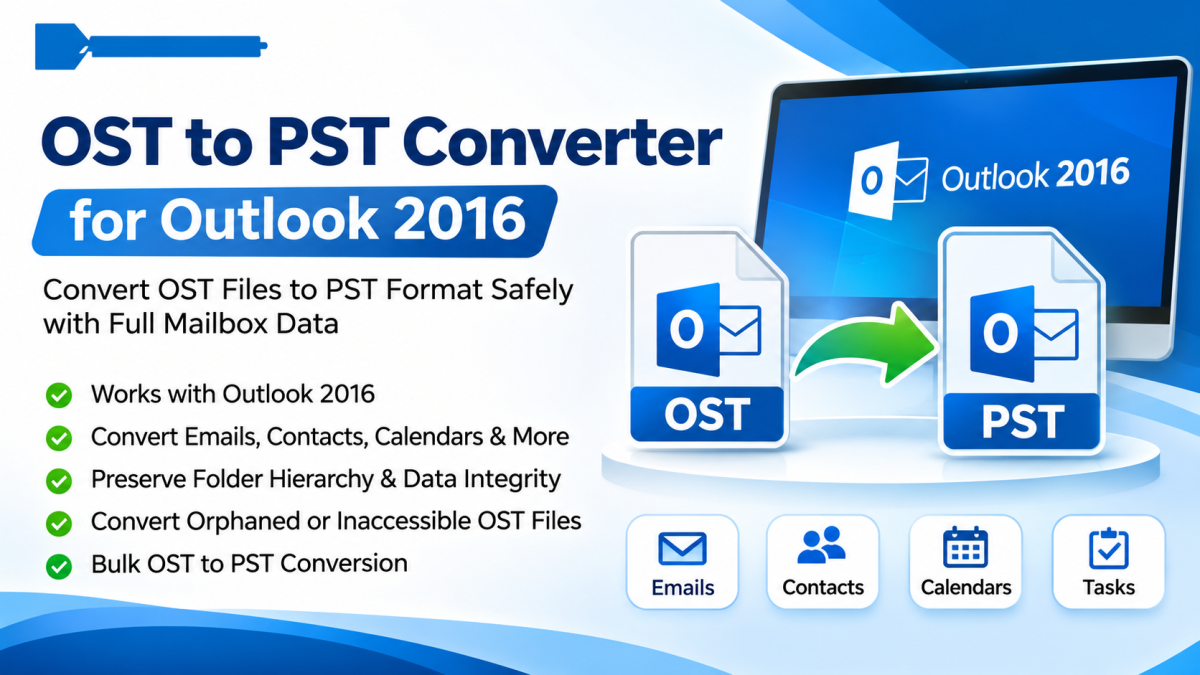
Have you accidentally deleted important emails from Microsoft Outlook and cannot find them in your mailbox? Losing business emails, customer conversations, financial records, or project-related messages can create serious problems, especially when those emails contain information that cannot easily be recreated.
Microsoft Outlook uses OST (Offline Storage Table) files to maintain locally synchronized copies of mailbox information. These files allow users to access previously synchronized emails and other mailbox items even when an internet connection is unavailable.
However, recovering deleted emails from OST files can be challenging. The recovery process depends on how the emails were deleted, whether the mailbox is still synchronized, and whether the deleted information remains available in the original mailbox or local data file.
In this guide, we explain different ways to recover deleted emails from OST files, including Outlook's built-in recovery options and professional OST recovery software.
What Is an OST File?
An OST file is an Outlook data file that stores a synchronized offline copy of mailbox information associated with supported Exchange, Microsoft 365, and other compatible email accounts.
It allows users to work with previously synchronized emails without maintaining a continuous connection to the mail server.
An OST file may contain:
-
Inbox emails
-
Sent Items messages
-
Draft emails
-
Deleted Items
-
Email attachments
-
Contacts and address book entries
-
Calendar appointments
-
Tasks and notes
-
Custom mailbox folders
When users delete emails in Outlook, the messages may initially move to the Deleted Items folder. Depending on the account configuration and deletion method, they may also remain recoverable through server-side retention or recovery features.
Why Do Emails Get Deleted from OST Files?
There are several reasons why Outlook users may lose important email messages.
1. Accidental Email Deletion
Users sometimes delete important emails while cleaning their inbox or organizing mailbox folders.
2. Emptying the Deleted Items Folder
When users empty the Deleted Items folder, messages may become unavailable through the standard Outlook interface.
3. Synchronization Problems
Synchronization errors between Outlook and the connected mailbox can cause confusion about which messages are available locally and on the server.
4. Outlook Profile Problems
A damaged or inaccessible Outlook profile may prevent users from accessing previously synchronized mailbox information.
5. Exchange Account Disconnection
When an Exchange account is disconnected or deleted, users may lose normal access to mailbox information associated with the original profile.
6. OST File Corruption
Unexpected shutdowns, storage problems, or application errors can damage OST files and make mailbox information difficult to access.
Method 1: Recover Deleted Emails from the Outlook Deleted Items Folder
The easiest way to recover deleted emails is to check the Deleted Items folder in Outlook.
Follow these steps:
Step 1: Open Microsoft Outlook on your computer.
Step 2: Select the Deleted Items folder from the mailbox folder list.
Step 3: Locate the email messages you want to recover.
Step 4: Right-click the required email.
Step 5: Select Move and choose Inbox or another preferred folder.
Step 6: Verify that the recovered email appears in the selected folder.
This method works when the deleted messages are still available in the Deleted Items folder.
Method 2: Recover Emails Using Recover Deleted Items
What happens if you have already emptied the Deleted Items folder?
In supported Exchange and Microsoft 365 mailbox environments, Outlook may provide an additional recovery option called Recover Deleted Items.
Follow these instructions:
Step 1: Open Microsoft Outlook and select the Deleted Items folder.
Step 2: Navigate to the Folder tab.
Step 3: Select Recover Deleted Items.
Step 4: Review the available recoverable messages.
Step 5: Select the emails you want to restore.
Step 6: Click Restore Selected Items or the equivalent recovery option.
Step 7: Check the Deleted Items folder for the restored messages.
The availability of this feature depends on the mailbox type, server configuration, retention policies, and administrator settings.
Method 3: Recover Deleted Emails Through Outlook Web Access
If your Outlook account is connected to Exchange Online or another supported Exchange environment, you may be able to recover deleted emails through Outlook on the web.
The general procedure is:
-
Open Outlook on the web.
-
Sign in using your email account.
-
Navigate to Deleted Items.
-
Look for the deleted email.
-
Select the required message.
-
Choose Restore or Move to Inbox, depending on the available option.
If the email is not present, check the Recover items deleted from this folder option if available.
This approach can be useful because the server mailbox may retain recoverable messages even when the local Outlook interface does not display them.
Method 4: Recover Deleted Emails from an OST File Using Professional Software
Sometimes the standard Outlook recovery methods are insufficient. For example, the original mailbox may be unavailable, the Outlook profile may be damaged, or users may need to examine an existing standalone OST file.
In these situations, professional OST recovery software may provide an alternative.
Specialized OST recovery applications are designed to scan supported OST files and identify recoverable mailbox information.
The general recovery process involves the following steps.
Step 1: Install OST Recovery Software
Select a reliable OST recovery application and install it on your Windows computer.
Check its compatibility with your OST file and operating system before installation.
Step 2: Add the OST File
Launch the application and locate the Add File or Browse option.
Select the OST file containing the mailbox information you want to examine.
Step 3: Scan the OST File
Start the scanning process.
Depending on the software, the application may perform a quick or advanced scan to identify mailbox information.
Step 4: Preview Recovered Emails
After scanning, examine the available mailbox folders and email messages.
Check the sender, recipient, subject, date, and message content to identify the emails you need.
Step 5: Select Required Emails
Choose the recoverable messages or folders you want to save.
Selective recovery can help reduce unnecessary processing.
Step 6: Choose the Export Format
Depending on the software, select PST or another supported output format.
Step 7: Save the Recovered Data
Choose a destination folder and start the export process.
Step 8: Verify Recovered Emails
Open the resulting PST file in a compatible Outlook installation and verify the recovered messages and attachments.
Important: Not every OST recovery application can recover permanently deleted emails. Recovery depends on whether the deleted message data remains available in the OST file or another recoverable source. A PST export of the remaining mailbox data does not automatically restore permanently deleted messages.
Important Features of Reliable OST Recovery Software
Choosing suitable recovery software is important when dealing with valuable mailbox information.
Consider the following features:
1. Advanced OST Scanning
The software should provide scanning capabilities to examine supported OST files and identify available mailbox information.
2. Deleted Email Recovery Support
Verify whether the application specifically supports recovering deleted messages rather than simply exporting existing mailbox items.
3. Email Preview
A preview feature allows users to inspect messages before saving them.
4. Attachment Recovery
The software should support recovering available email attachments along with their associated messages.
5. Selective Recovery
Users should be able to select specific emails or folders for export.
6. PST Export Support
Exporting recoverable messages into PST format can help users access them through compatible Outlook installations.
7. Folder Structure Preservation
Maintaining the original mailbox organization makes it easier to manage recovered emails.
8. Data Security
Choose software that handles sensitive mailbox information securely and preferably processes it locally when appropriate.
OST Email Recovery: Important Tips to Improve Recovery Chances
If you have accidentally deleted important Outlook emails, consider these precautions:
-
Stop unnecessary changes to the affected mailbox.
-
Check Deleted Items before attempting advanced recovery.
-
Use Outlook's Recover Deleted Items option when available.
-
Contact your Microsoft 365 or Exchange administrator about retention and backup policies.
-
Preserve the original OST file before attempting recovery.
-
Work with a copy of the OST file whenever possible.
-
Avoid saving recovered information to the same drive if storage failure is suspected.
-
Test recovery software using a sample or copy of the file.
-
Verify recovered emails and attachments before relying on the results.
Acting quickly can help preserve available recovery options, particularly when retention periods or storage conditions are involved.
Frequently Asked Questions (FAQs)
1. Can I recover permanently deleted emails from an OST file?
Recovery may be possible if the deleted email data remains available in the OST file, server mailbox, or another backup. Permanently deleted messages cannot always be recovered.
2. How can I recover deleted emails from Outlook OST files?
First, check Deleted Items and Outlook's Recover Deleted Items feature. If the original mailbox is unavailable, consider specialized OST recovery software that explicitly supports deleted email recovery.
3. Can I recover deleted emails without an Exchange Server?
Some recovery applications can examine standalone OST files without requiring an active Exchange Server connection. However, recovery depends on the availability of the deleted message data.
4. Does converting OST to PST recover deleted emails?
No. Standard OST to PST conversion generally exports available mailbox information. It does not automatically recover permanently deleted emails.
5. Can I recover deleted email attachments?
If the original email and its attachment data remain recoverable, suitable recovery software may be able to restore them.
6. Is free OST recovery software available?
Some applications offer free scanning or trial versions. However, recovery and export capabilities may be limited. Check the available features before using a tool for important mailbox data.
7. Can I recover deleted emails from a corrupted OST file?
Some specialized tools support scanning damaged OST files. The success of recovery depends on the extent of file corruption and the availability of recoverable data.
Conclusion
Recovering deleted emails from OST files is important for users who need to preserve business communication, customer information, and personal mailbox records.
The first step should always be to check Outlook's Deleted Items folder and Recover Deleted Items functionality. These built-in options can restore messages when they remain available through the mailbox's recovery features.
When the original Outlook profile is inaccessible or the OST file requires specialized examination, professional OST recovery software may provide another option.
Before selecting a recovery solution, evaluate its deleted email recovery capabilities, scanning technology, attachment support, preview functionality, and PST export options. Most importantly, remember that recovery depends on whether the deleted email data still exists in a recoverable location.
Using the right recovery approach can help users preserve valuable Outlook mailbox information and reduce the risk of permanent email loss.







Comments (0)