

Office 365 Migration for Windows 11 – Complete Guide
Learn how to migrate email data to Office 365 on Windows 11. Explore migration methods, software compatibility, preparation, and step-by-step instructions.


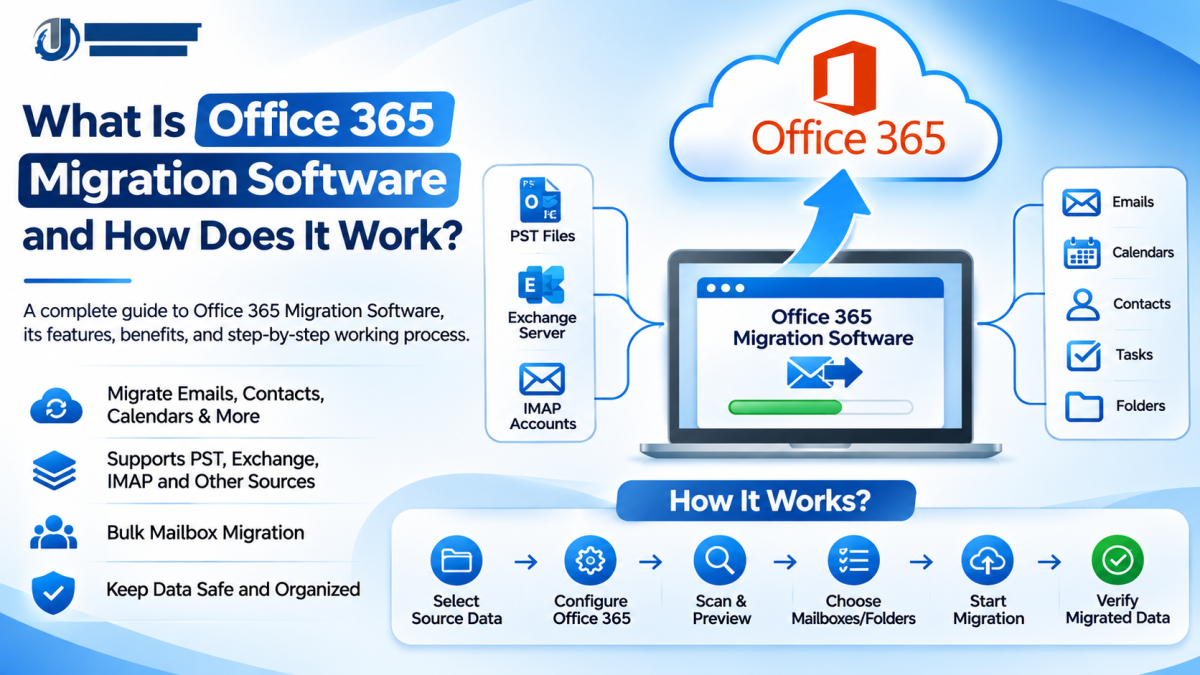
Windows 11 is widely used by businesses and individuals who need reliable access to email, documents, and cloud-based collaboration tools. As organizations upgrade their operating systems and modernize their IT infrastructure, moving email data to Office 365 (Microsoft 365) has become an important part of digital transformation.
Office 365 migration for Windows 11 involves transferring supported email data, mailboxes, or files to Microsoft 365 using compatible migration methods and applications. Whether you are moving from an older Outlook installation, an on-premises Exchange Server, an IMAP email account, or local email backup files, choosing the right approach can make the process easier to manage.
This guide explains how Office 365 migration works on Windows 11, which methods are available, how to prepare your system, and what to consider when selecting migration software.
What Is Office 365 Migration for Windows 11?
Office 365 migration for Windows 11 refers to transferring supported email data or other organizational information to Microsoft 365 using a Windows 11 computer.
Windows 11 acts as the operating system from which users or administrators can access migration tools, configure email accounts, and manage supported data-transfer operations.
Depending on the source platform and migration method, the process may involve:
-
Migrating Outlook or Exchange mailboxes to Exchange Online.
-
Transferring emails from IMAP accounts to Microsoft 365.
-
Importing supported PST files into Outlook or Exchange Online.
-
Moving email archives from supported platforms.
-
Configuring Microsoft 365 accounts in Outlook for Windows.
-
Migrating supported business data to Microsoft 365 services.
It is important to understand that installing Windows 11 does not automatically migrate existing email data. The migration process must be configured separately.
Why Is Office 365 Migration Important for Windows 11 Users?
Businesses and individuals use Microsoft 365 because it provides cloud-based email, file storage, and collaboration services.
1. Access Email Across Devices
Microsoft 365 allows users to access supported email services through Outlook, web browsers, and mobile applications. This makes it easier to work across different devices.
2. Simplify Email Management
Exchange Online provides centralized mailbox management for organizations. Administrators can manage accounts, licenses, and email settings through Microsoft 365 administration tools.
3. Support Remote Working
Cloud-based email and collaboration services help employees access business information when working outside the office.
4. Improve Collaboration
Microsoft 365 includes services such as Teams, SharePoint, and OneDrive, depending on the subscription. These services can support communication and document sharing.
5. Modernize Business Infrastructure
Organizations can move supported workloads from older email environments to cloud services, reducing dependence on certain on-premises systems.
Common Office 365 Migration Scenarios on Windows 11
The correct migration method depends on where your data is currently stored.
1. Outlook PST to Office 365 Migration
PST files contain Outlook mailbox information such as emails, folders, and supported calendar and contact data.
Users may need to import PST data into Outlook or use an appropriate Microsoft 365 import workflow. For organizational bulk imports, administrators should review Microsoft's supported PST import process.
2. Exchange Server to Office 365 Migration
Businesses using an on-premises Exchange Server can move eligible mailboxes to Exchange Online.
Depending on the Exchange version and requirements, supported methods may include hybrid or other Microsoft migration approaches.
3. IMAP to Office 365 Migration
IMAP migration can transfer supported email messages and folders from compatible email services to Microsoft 365.
However, standard IMAP migration does not automatically transfer calendars, contacts, tasks, or all mailbox settings.
4. Outlook Email Account Migration
Users can configure an existing Microsoft 365 account in Outlook for Windows 11. If older mailbox data is stored locally, it may need to be imported separately.
5. Third-Party Migration Software
Professional Office 365 migration software may provide a centralized workflow for supported source platforms and file formats.
Features vary by product, so users should check compatibility with Windows 11, Microsoft 365, and their particular source environment.
System Requirements for Office 365 Migration on Windows 11
Before beginning migration, check that your Windows 11 computer and network environment are ready.
Important considerations include:
-
A supported and updated Windows 11 installation.
-
Stable internet connectivity.
-
Sufficient local storage for temporary migration files, where required.
-
Access to the source email account or mailbox.
-
Appropriate Microsoft 365 subscription and destination mailbox.
-
Required administrative permissions.
-
Compatible Outlook or migration software, if needed.
-
Security software and firewall settings that permit the required connections.
For large mailbox migrations, network bandwidth and available storage can affect performance.
How to Migrate Email Data to Office 365 on Windows 11
The following steps provide a general migration workflow. The exact procedure depends on the source platform and migration method.
Step 1: Identify Your Source Email Data
First, determine where your existing email data is stored.
It may be located in:
-
Outlook PST files.
-
An on-premises Exchange Server.
-
An IMAP email account.
-
Another supported email platform.
-
An email backup application.
Identify the number of mailboxes, data volume, and required data types before choosing a migration method.
Step 2: Prepare Your Microsoft 365 Account
Sign in to the Microsoft 365 environment and confirm that the destination account is ready.
For business migrations, administrators may need to:
-
Configure the Microsoft 365 tenant.
-
Verify the organization's domain.
-
Create or synchronize user accounts.
-
Assign appropriate licenses.
-
Provision destination mailboxes.
-
Confirm required administrative permissions.
Step 3: Select the Appropriate Migration Method
Choose a method that supports your source environment.
For example:
-
PST files: Use a supported Outlook import or Microsoft 365 PST import process.
-
Exchange Server: Use an eligible Microsoft-supported Exchange migration method.
-
IMAP accounts: Use Microsoft's IMAP migration process for supported email data.
-
Specialized migration requirements: Evaluate compatible third-party migration software.
Do not assume that every method transfers all mailbox data types.
Step 4: Install or Configure the Required Software
If your selected migration process requires desktop software, download it from the official vendor website.
Before installation:
-
Check Windows 11 compatibility.
-
Review the system requirements.
-
Confirm the software supports your source format.
-
Verify that the product supports your intended Microsoft 365 destination.
-
Review licensing and trial restrictions.
Avoid downloading migration applications from untrusted websites.
Step 5: Connect the Source and Destination
Depending on the selected tool, you may need to provide source mailbox details, select PST files, or configure the required server connection.
For organizational migrations, administrators should use the authentication and permission configuration recommended for the selected migration method.
Protect login credentials and avoid storing passwords in unencrypted spreadsheets.
Step 6: Select Mailboxes or Email Data
Choose the mailboxes, folders, or files that need to be transferred.
If the software supports mailbox mapping, match each source account with its correct Microsoft 365 destination mailbox.
Review the selection carefully to avoid transferring data to the wrong account.
Step 7: Start and Monitor Migration
Start the migration after checking the configuration.
Monitor the process for:
-
Authentication errors.
-
Connection failures.
-
Unsupported items.
-
Large mailbox delays.
-
Failed or skipped data.
-
Service throttling.
For large migrations, test a small group of mailboxes before transferring the remaining data.
Step 8: Verify Migrated Data
After migration, sign in to the destination Microsoft 365 account and check the transferred information.
Review important folders, email messages, attachments, and date ranges. Also verify calendars and contacts when the selected migration method supports them.
Keep the original data available until migration results have been confirmed.
How Can Office 365 Migration Software Help Windows 11 Users?
Professional Office 365 migration software can simplify certain migration tasks by providing a centralized interface for supported email sources and destinations.
Depending on the product, features may include:
-
Multiple mailbox selection.
-
Batch migration.
-
Mailbox mapping.
-
Folder selection.
-
Date-based filtering.
-
Migration progress monitoring.
-
Error reporting.
-
Support for specific email file formats.
These features can be useful for IT administrators managing multiple accounts or users moving supported email archives.
However, third-party software is not required for every migration. Microsoft's native migration tools may be sufficient for many supported scenarios.
Common Office 365 Migration Problems on Windows 11
Users may encounter several issues during migration.
Authentication Errors: Incorrect credentials or unsupported authentication methods can prevent access to source mailboxes.
Compatibility Problems: Older applications or migration tools may not support the required Windows 11 or Microsoft 365 configuration.
Insufficient Storage: Large PST files may require additional local storage during processing.
Slow Migration: Network limitations, large attachments, and service throttling can affect migration speed.
Incomplete Data Transfer: Some migration methods do not support every mailbox item or configuration.
Outlook Configuration Issues: Incorrect account settings or outdated applications can prevent users from accessing their destination mailboxes.
Check software compatibility, review migration logs, and verify the source data before repeating failed operations.
Best Practices for Successful Office 365 Migration
Follow these recommendations to improve the migration process:
-
Back up important email data before migration.
-
Check Windows 11 and software compatibility.
-
Identify mailbox sizes and supported data types.
-
Select a migration method based on the source platform.
-
Test the process with a small sample.
-
Use accurate mailbox mapping.
-
Protect passwords and administrator credentials.
-
Monitor migration reports and errors.
-
Verify destination mailbox contents.
-
Keep the original data until migration is complete.
Conclusion
Office 365 migration for Windows 11 helps users and organizations move supported email data to Microsoft's cloud-based services. The right migration approach depends on whether the source data is stored in Outlook PST files, Exchange Server, IMAP accounts, or another supported platform.
By preparing the Windows 11 system, selecting a compatible migration method, testing the process, and verifying transferred data, users can make the transition more organized.
Professional Office 365 migration software may offer additional workflow features for specific migration requirements, while Microsoft's native tools remain suitable for many supported environments.
Frequently Asked Questions
1. Can I migrate Office 365 data using Windows 11?
Yes. Windows 11 can be used to access Microsoft 365 administration tools, configure Outlook, and run compatible migration applications.
2. Is Office 365 migration software compatible with Windows 11?
Some migration products support Windows 11. Always verify the vendor's current system requirements before installation.
3. Can I migrate PST files to Office 365 on Windows 11?
Yes. Supported PST files can be imported using Outlook or Microsoft's available PST import workflows, depending on the requirements.
4. Can I migrate multiple mailboxes from Windows 11?
Yes. Supported Microsoft migration methods and some third-party tools allow administrators to manage multiple mailbox transfers.
5. Do I need Outlook installed to migrate email to Office 365?
Not always. Some migration methods use Microsoft 365 administration tools or server connections without requiring desktop Outlook. Other workflows may use Outlook to import local PST files.
6. Is third-party Office 365 migration software necessary?
No. Native Microsoft migration methods may be sufficient. Third-party tools can help when their supported features address specific migration requirements.
7. How can I avoid data loss during Office 365 migration?
Back up important data, test the migration, check supported data types, monitor errors, and verify destination mailbox contents before retiring the source environment.






Comments (0)