

QuickBooks File Doctor vs Rebuild Data: Which to Use
Not sure whether to run QuickBooks File Doctor or Rebuild Data? Learn what each tool actually does, how they differ, and which one fits your situation.
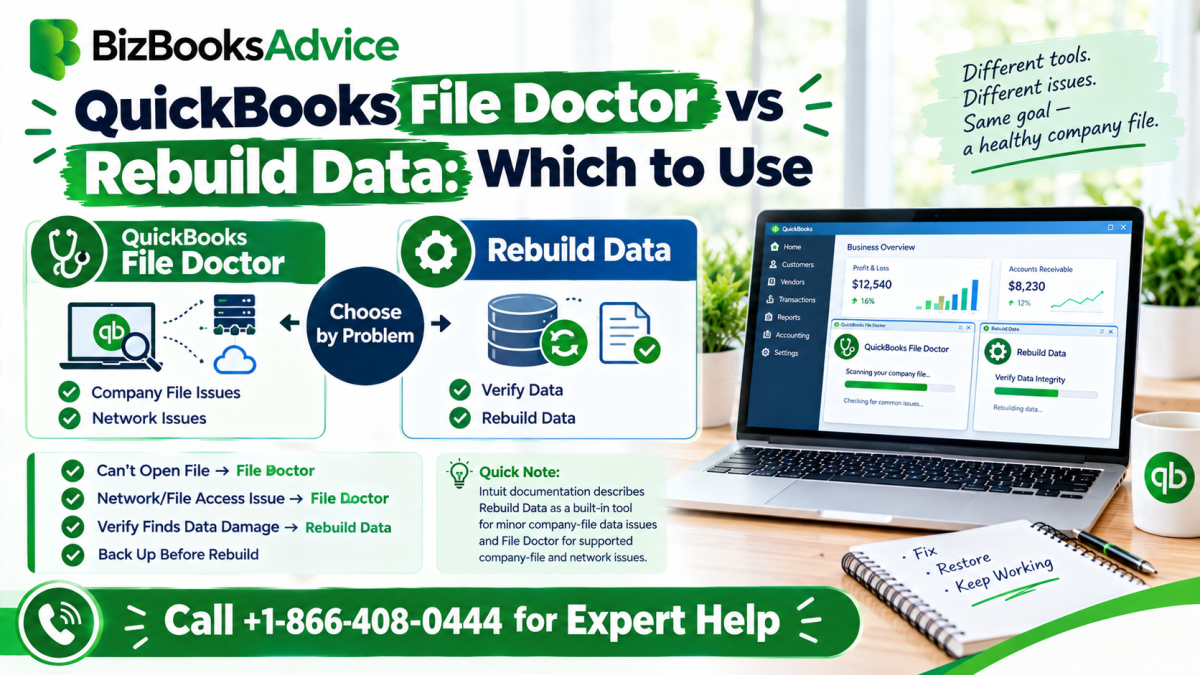
QuickBooks File Doctor and Rebuild Data solve overlapping but genuinely different problems, and picking the wrong one first can cost you time. Rebuild Data is a narrower, faster tool built into QuickBooks itself, focused specifically on repairing internal data integrity issues. File Doctor is a broader, separate utility that also checks network setup, multi-user access, and certain Windows-level issues alongside data damage. As a general rule, Rebuild Data is the better first step for straightforward data damage, while File Doctor is the better choice when network, multi-user, or access errors are involved. The comparison below helps you decide, and the order to try them in when you're not sure.
What each tool actually is
| Rebuild Data | File Doctor | |
|---|---|---|
| Built into QuickBooks | Yes, no separate download | No, separate tool (standalone or via Tool Hub) |
| Focus | Internal data integrity only | Data integrity, plus network and access issues |
| Typical run time | Faster, usually minutes | Slower, especially on larger or more damaged files |
| Handles multi-user/network errors | No | Yes |
| Handles specific error codes (H-series, 6000-series) | Indirectly, if they stem from data damage | Directly, including network-related causes |
| Needs administrator rights | Not usually | Yes |
| File size handling | No hard limit within QuickBooks itself | Has practical size limits (200MB Pro / 450MB Enterprise) |
When to use Rebuild Data first
- Verify Data reported "lost integrity." This is the direct, intended next step.
- You're seeing report or balance inconsistencies, without any network or access errors involved.
- The file opens normally, and the only symptom is incorrect or missing data somewhere inside it.
- You want the fastest, least disruptive first attempt, since Rebuild Data runs inside QuickBooks without a separate install.
How to run it
- Back up your company file first. Go to File → Back Up Company → Create Local Backup.
- Go to File → Utilities → Rebuild Data.
- Confirm the backup prompt and let it run.
- Run File → Utilities → Verify Data afterward to confirm the damage was resolved.
When to use File Doctor instead
- You're seeing an H-series error (H101, H202, H303, H505) or a 6000-series error, which often point to network or file-access problems rather than pure data damage.
- Multi-user mode is failing, or other computers can't access a shared company file.
- The file won't open at all, and you're not sure whether it's data damage, a network issue, or something else.
- Rebuild Data already ran and didn't fully resolve the problem. File Doctor's broader scan may catch something Rebuild Data's narrower focus doesn't.
How to run it
- Open QuickBooks Tool Hub and go to Company File Issues.
- Select Run QuickBooks File Doctor.
- Choose your company file, select Check your file and network, and enter your Admin password when prompted.
- Let the scan run and follow any repair prompts it gives you.
A practical order to try them in
If you're not sure which one fits your specific symptoms, this order avoids wasted time:
- Run Verify Data first, regardless of which repair tool you're leaning toward, since it confirms whether data damage is actually present.
- If damage is confirmed and there's no network or access error involved, run Rebuild Data. It's faster and handles this specific job well.
- If Rebuild Data doesn't fully resolve it, or if a network, multi-user, or H-series/6000-series error is involved from the start, run File Doctor.
- If File Doctor also doesn't resolve it, more serious damage may be present, and Auto Data Recovery or a backup restore becomes the next consideration.
A few situations worth calling out specifically
- Large files: File Doctor has practical size limits that Rebuild Data doesn't share, since Rebuild Data works within QuickBooks itself rather than as a separate scanning tool. For files near or over File Doctor's limits, Rebuild Data may be the more workable option, or a condensed version of the file for File Doctor's purposes.
- Mac users: File Doctor doesn't exist on Mac at all. Verify and Rebuild Data, both built into QuickBooks for Mac, are your tools regardless of the symptom.
- Repeated damage: If the same file keeps developing damage after being fixed by either tool, the underlying cause, such as a failing drive, network interruptions, or an abrupt shutdown habit, is worth investigating separately from which repair tool you use.
Neither tool is a substitute for backups
Both Rebuild Data and File Doctor work on your existing file, attempting to fix it in place after backing it up as part of the process. Neither one recovers data that's genuinely missing or restores an older, cleaner version the way a proper backup or Auto Data Recovery does. If a company file has gone through repeated damage or a rebuild doesn't fully resolve an issue, a recent, verified backup is often the more reliable path forward than continuing to run repair tools on an already-compromised file.
When to get professional help
Consider getting help if Verify Data keeps reporting the same issue after trying both tools, you're not sure which category your specific error falls into, or you don't have a recent clean backup to fall back on if repairs don't fully work. A QuickBooks professional can diagnose the specific cause and choose the right repair path without unnecessary trial and error. You can reach BizBooksAdvice at +1-866-408-0444.
Frequently asked questions
Can I just run both tools to be safe?
You can, and it won't cause harm, but running Verify Data first to understand what you're actually dealing with is a better use of time than running both tools without knowing which one addresses your specific issue.
Is File Doctor better than Rebuild Data because it does more?
Not necessarily better, just broader. For straightforward data damage with no network or access symptoms, Rebuild Data alone is often enough, and running File Doctor as well adds time without adding benefit.
Does Rebuild Data fix H-series errors?
Only indirectly, if the H-series error happens to be rooted in data damage rather than a genuine network or access configuration problem, which is the more common cause of H-series errors specifically.
Which tool should I use if I'm not sure what's wrong?
Start with Verify Data to confirm whether data damage is present at all. From there, use the comparison table above to match your symptoms to the right tool.
Do both tools require a backup first?
Rebuild Data prompts you to back up before it runs. File Doctor doesn't back up your file the same way, so it's worth creating a manual backup yourself before running it, particularly if the file already shows signs of damage.

BizBooksAdvice provides outsourced bookkeeping services USA for small businesses and startups. We offer accurate financial reporting, payroll management, tax preparation, and QuickBooks support to help businesses reduce costs and stay compliant. Our expert team ensures reliable, scalable, and efficient accounting solutions tailored to your needs.










Comments (0)