

How to Remove a VBA Project Password from an Excel File
Learn how to remove VBA project password from Excel manually or use a VBA Protection Removal Tool when the password is forgotten.

A VBA project password can prevent you from viewing or editing the VBA code inside an Excel workbook. This can become a problem when you have forgotten the password or received an Excel file with a protected VBA project and need to access its code.
The VBA project protection is different from normal worksheet protection. It is used to restrict access to the VBA project in the Visual Basic Editor. If you know the password, Excel provides a direct way to remove the protection. If you do not know the password, you may need a dedicated VBA Protection Removal Tool as an alternative.
This guide explains both approaches and when each method may be suitable.
Why Does This Problem Happen?
A VBA project can be protected so that other users cannot view or edit its VBA code. When the project is locked, Excel asks for the VBA project password before allowing access to the code.
You may face this problem when:
- You forgot the password used to protect your VBA project.
- An old Excel workbook contains a protected VBA project.
- Another person created the workbook and did not provide the VBA password.
- You need to review or edit VBA code but cannot open the protected project.
- You need to work with a workbook that contains VBA code you are authorized to access.
The main issue is that the VBA code remains inaccessible until the project protection is removed or the correct password is provided.
How to Solve the Problem Manually
If you know the existing VBA project password, you can remove the protection through Excel. This is the genuine manual approach because Excel allows the project owner or an authorized user to change the protection settings after entering the correct password.
Follow these steps:
- Open the Excel workbook that contains the protected VBA project.
- Open the Visual Basic Editor from Excel.
- Locate the VBA project in the Project Explorer.
- Open the project properties.
- Go to the Protection section.
- Enter the current VBA project password when prompted.
- Remove the project protection setting.
- Save the workbook.
- Close and reopen the file if required, then check whether the VBA project can be accessed without the password.
The exact menu names can vary slightly depending on the Excel version. The important requirement is that you must know the existing project password to change the protection through Excel.
Limitations of the Manual Method
The manual method is useful when the password is available. However, it has a clear limitation: it does not provide a normal Excel option for removing a forgotten VBA project password without first supplying the existing password.
This can make the manual approach unsuitable when:
- The original VBA password is forgotten.
- The password was created by someone else and is not available.
- You need to access an authorized VBA project but cannot provide its password.
- You need a separate process for handling the protected project.
In these situations, repeatedly trying passwords may not be a practical way to access the VBA project.
How to Solve the Problem Using Software
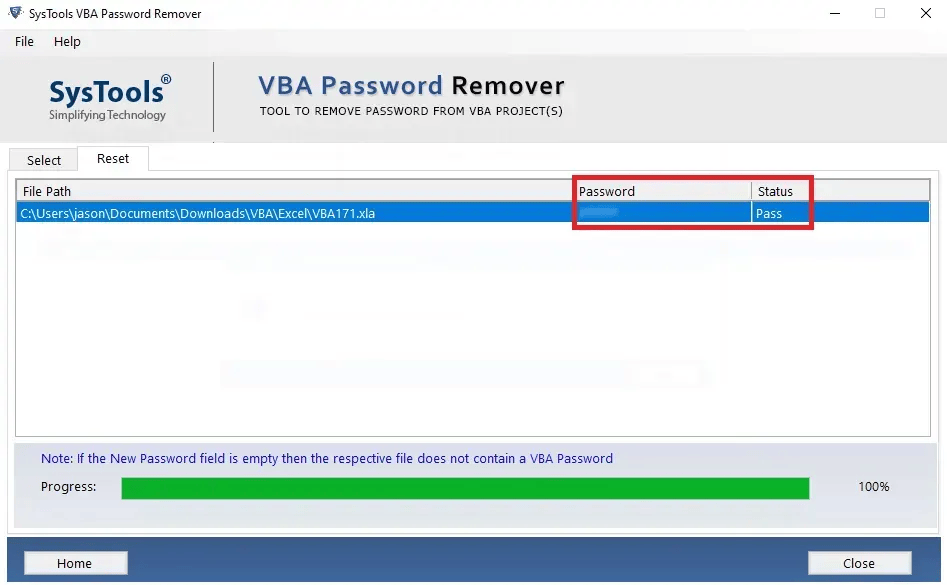
When the original VBA project password is not available, a dedicated VBA password removal application can be considered as an alternative. SysTools VBA Password Remover Tool is designed to help users remove forgotten VBA project protection from supported Excel files.
Instead of relying on the normal Excel protection settings, the software provides a separate process for loading the Excel file and removing the VBA project protection.
This approach may be useful for home users, IT professionals, and other users who have a valid reason to access or edit the VBA project but do not have the original password.
The software should only be used with Excel files that you own or have permission to access.
Steps to Use the Software
The basic working process of the SysTools VBA Protection Removal Tool is straightforward:
- Download and launch the SysTools VBA Password Remover Tool.
- Select the Excel file containing the protected VBA project.
- Load the file into the software.
- Start the VBA project protection removal process.
- Allow the software to process the selected file.
- Open the resulting Excel file and check the VBA project.
After the process, verify that the VBA project is accessible and that the workbook still contains the data and VBA content you need.
Relevant Software Features
The features that directly relate to this task include:
- VBA Project Password Removal: Helps remove forgotten protection from a supported VBA project.
- Excel File Selection: Allows the user to select the workbook that needs to be processed.
- Simple Interface: The workflow is designed around selecting the file and processing the protected project.
- Access to Protected VBA Projects: The purpose of the tool is to help authorized users access VBA projects when the original project password is unavailable.
The software is intended for removing VBA project protection rather than changing unrelated Excel workbook settings.
Manual Method vs Software Method
|
Point |
Manual Method |
VBA Protection Removal Tool |
|
Password |
Requires the existing password |
Intended for forgotten VBA project passwords |
|
Process |
Uses Excel and VBA project settings |
Uses a separate software process |
|
Technical effort |
Requires access to project protection settings |
File selection and removal process |
|
Suitable for |
Users who know the password |
Users who need an alternative for a forgotten password |
|
Main limitation |
Cannot normally remove forgotten protection through Excel |
Requires supported file and software processing |
The suitable approach depends on the situation. If you know the current password, the built-in Excel method can be used. If the password is forgotten and you are authorized to access the VBA project, a dedicated removal tool provides another approach.
Know More Useful Tools
Conclusion
A protected VBA project can stop you from viewing or editing the VBA code inside an Excel workbook. When the password is known, you can use Excel's VBA project protection settings to remove the protection manually. However, this method depends on having the existing password.
When that password is forgotten, the normal Excel process may not solve the problem. In that case, a VBA Protection Removal Tool such as SysTools VBA Password Remover Tool can be considered as an alternative for supported Excel files. The key is to use the method that matches your situation and only process files you are authorized to access.









Comments (0)