

How To Set Up TP Link Deco Mesh? A Complete Guide
Learn how to set up TP Link Deco Mesh with easy steps. Configure Wi-Fi and manage TP Link Deco login and firmware updates for better coverage.
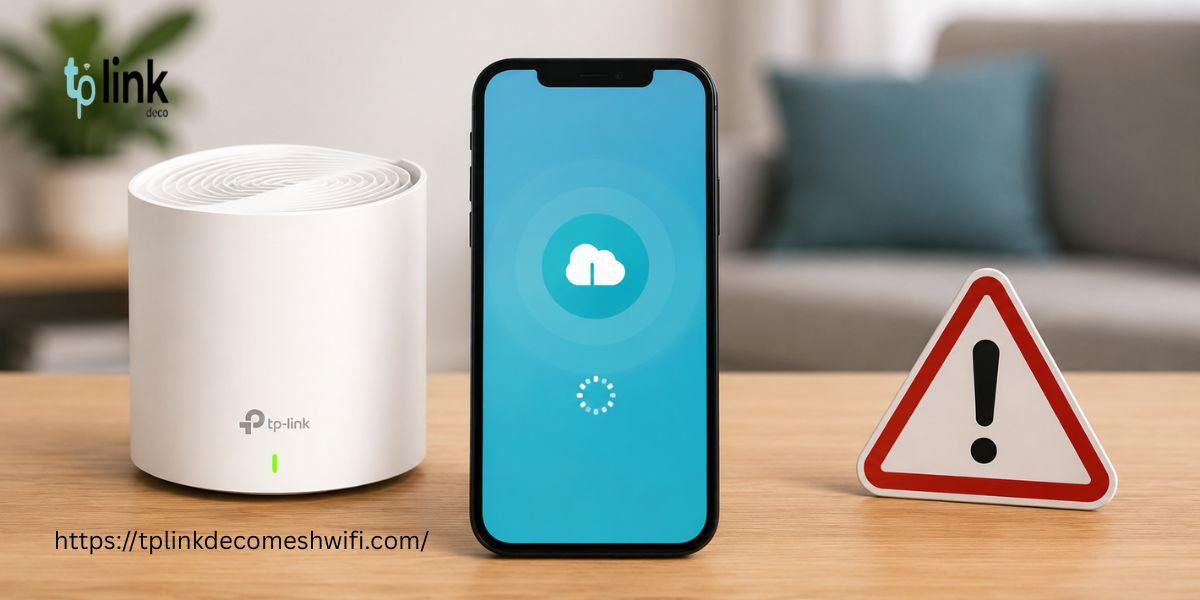
To finish the TP Link Deco mesh setup, download the TP‑Link Deco app onto your smartphone. Then connect the Deco unit to your modem with an Ethernet cable. Turn on the device. Follow the instructions in the app to create your Wi‑Fi network. Add Deco units to extend coverage across your home. Use the app to manage settings and to check for a TP‑Link Deco firmware update.
TP‑Link Deco Mesh is a Wi‑Fi system that gives internet coverage in many parts of your home. It cuts down on Wi‑Fi spots and lets your devices use the strongest signal. The setup is easy if you follow the steps. This guide shows how to set up your Deco system and use its settings.
Requirements Before Setup
Before you start the TP Link Deco mesh setup, make sure you have these items ready.
-
A TP‑Link Deco mesh router
-
A working modem and internet connection
-
A smartphone with the Deco app installed
-
An Ethernet cable
-
Your TP‑Link account credentials
-
A power supply
Steps to Set Up TP‑Link Deco Mesh
Step 1: Download the Deco App
Download the official TP‑Link Deco app from the Google Play Store or Apple App Store. Open the app. Sign in with your TP‑Link account. If you do not have an account, create one. Verify it if needed.
Step 2: Connect the Main Deco Unit
Turn off your modem before you plug in the devices. Connect the Deco unit to the modem with an Ethernet cable. Turn on the modem. Wait until it is ready. Then plug the Deco unit into a power outlet.
Wait until the LED light starts pulsing blue. This usually means the device is ready for setup. Check your model’s manual if the light behaves differently.
Step 3: Configure Your Network
Open the Deco app. Choose the option to add a new Deco device. Pick your model from the list. Follow the on‑screen instructions. The app will guide you through the connection process. If asked, choose your type of internet connection. Enter the information that your internet service provider gave you when needed.
Step 4: Create Your Wi‑Fi Network
Choose a name for your Wi‑Fi network. Create a strong password. Connect your smartphone to the network when the app asks you to. After the main Deco unit is connected to the internet, test the link by opening a website on your phone.
Step 5: Add Additional Deco Units
Place the Deco units in different parts of your home. Keep them close to the main unit so they can talk to each other. Plug in each unit and use the Deco app to add it to your existing network. Wait until the app tells you the unit has joined successfully. For performance, avoid putting Deco units behind big furniture or near devices that can interfere with Wi‑Fi.
How to Access TP Link Deco Login?
The TP Link Deco login process lets you manage your mesh network through the app.
1. Open the TP‑Link Deco app on your smartphone.
2. Sign in with your TP‑Link account.
3. Select your Deco network.
4. Open the settings to manage Wi‑Fi details and connected devices.
5. Review available controls and security options.
The Deco app is the way to manage most Deco models. Features may differ by model and firmware.
How to Perform a TP Link Deco Firmware Update?
A TP Link Deco firmware update can improve device stability. Fix known security issues.
1. Open the Deco app.
2. Select your Deco network.
3. Go to the update section under the app’s settings or system options.
4. Check if a firmware update is available.
5. Follow the steps to install the update.
Keep your Deco units powered on during the update. Do not unplug them until the process ends. Menu names may vary.
Troubleshooting Common Setup Issues
If your Deco system does not connect properly, try these solutions.
-
Restart your modem and Deco units.
-
Check that the Ethernet cable is connected securely.
-
Move Deco units closer to the main unit.
-
Verify your internet connection with your service provider.
-
Update the Deco app to the version.
-
Check the LED light and read your model’s manual.
Do not reset your Deco device unless it is truly needed because a factory reset can erase all of Deco’s settings.
Conclusion
The TP‑Link Deco mesh setup process is simple when you use the Deco app and follow the installation steps. First connect the unit to your modem and set up your Wi‑Fi network before adding any other Deco devices. Then use the TP‑Link Deco login to manage your network and keep an eye on Deco firmware updates because fresh firmware keeps your Deco running.
Frequently Asked Questions
1. Can I set up TP-Link Deco without the app?
Most Deco models need the Deco app for the setup. Check your Deco model’s documentation for the setup methods that your Deco supports.
2. Why is my TP-Link Deco blinking blue?
A pulsing blue light on your Deco usually means your Deco is ready for setup. Refer to your Deco’s guide to be sure.
3. How Deco units can I connect?
The number of Deco units you can add depends on your Deco model and system specs. Look at your Deco’s manufacturer documentation for these compatibility details.
4. How often should I perform a TP Link Deco firmware update?
Check for Deco firmware updates and install them when they appear. If your Deco supports it, turn on updates for your Deco.
5. Can I use the Wi‑Fi name and password?
Yes. You can set your Deco network to use the Wi‑Fi name and password you like. Your Deco devices will reconnect to that Wi‑Fi name and password once they are set up.
Also Read:
https://tplinkdeco.substack.com/p/how-to-set-up-tp-link-deco-mesh-wifi
https://tplinkdecomeshwifi.bcz.com/2021/10/01/tp-link-deco-setup/
https://writerliz.com/how-to-set-up-a-tp-link-deco-mesh-wifi-system-easily

We provide assistance with TP Link Deco login issues, including accessing the login page, resolving password errors, configuring WiFi settings, troubleshooting connection problems, and guiding users through basic setup and network management for smoother connectivity. https://tplinkdecomeshwifi.com/












Comments (0)