

How to Set Up Direct Deposit for Employees in QuickBooks Payroll

Paying employees on time is an important part of managing a business. QuickBooks Payroll makes this process easier by allowing employers to send employee paychecks directly to their bank accounts. Instead of printing paper checks, you can use the direct deposit feature to transfer salaries to employees' checking or savings accounts.
Setting up direct deposit in QuickBooks involves configuring your company payroll account, collecting employee banking details, and entering the information into the payroll system. Once everything is ready, you can process payroll without manually preparing checks for every employee.
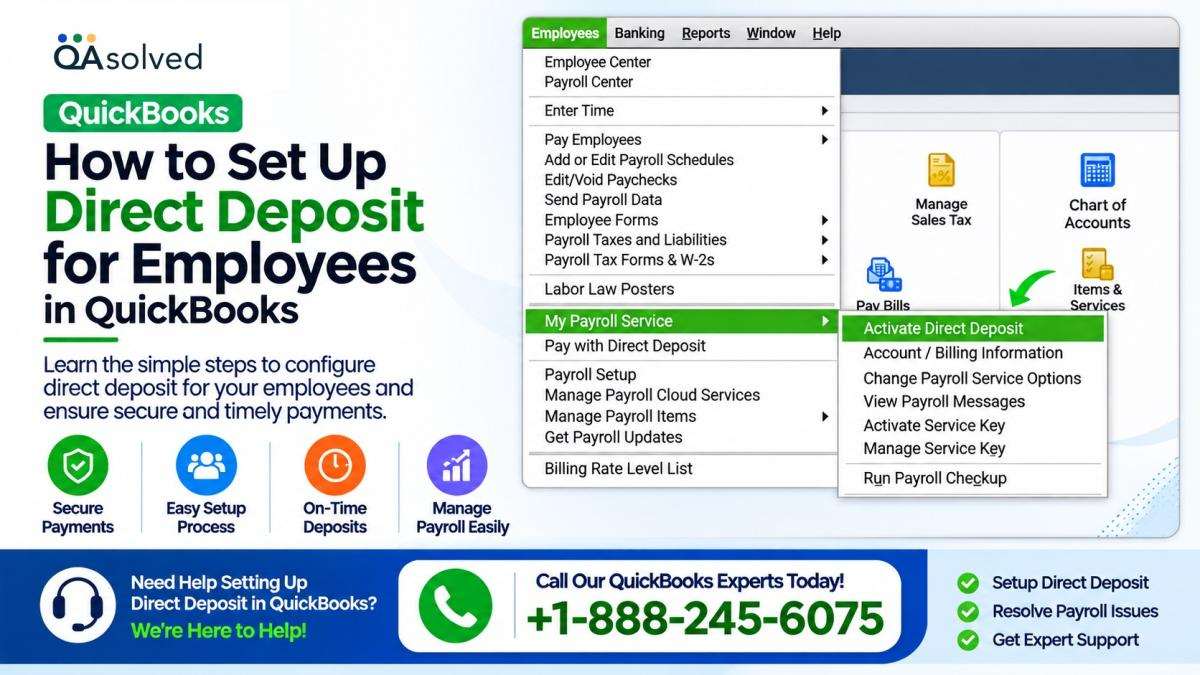
This guide explains how to set up direct deposit for employees in QuickBooks, collect their banking information, and manage payment preferences in QuickBooks Online, QuickBooks Workforce, and QuickBooks Desktop Payroll.
What Is Direct Deposit in QuickBooks Payroll?
Direct deposit is an electronic payment method that transfers employee wages directly from an employer's bank account to an employee's designated bank account.
QuickBooks Payroll supports direct deposits to checking and savings accounts. Employers can also split payments between two accounts, depending on the available payroll options.
Using direct deposit offers several advantages:
· Faster payments: Employees receive their wages electronically without waiting for paper checks.
· Convenience: Employers can process payroll without printing and distributing checks.
· Better recordkeeping: QuickBooks maintains payroll payment information.
· Flexible payments: Employees may divide their pay between two bank accounts.
· Reduced paperwork: Businesses can minimize the need to prepare physical paychecks.
Requirements for Setting Up Employee Direct Deposit
Before enabling direct deposit, make sure you have the necessary business, banking, and employee information.
1. Business Information
Keep the following company details ready:
· Legal business name
· Business address
· Employer Identification Number (EIN)
2. Principal Officer Information
QuickBooks may require information about your company's principal officer, including:
· Full legal name
· Residential address
· Social Security number
· Date of birth
3. Company Bank Information
You must have a US bank account that supports Automated Clearing House (ACH) transactions.
Keep these details available:
· Bank routing number
· Bank account number
· Online banking credentials, if required during verification
You should also collect the employee's banking information before adding direct deposit details to QuickBooks.
Important: Employees who use the QuickBooks Workforce portal may be able to enter or update their own banking information, depending on their payroll setup.
Step 1: Set Up Company Direct Deposit in QuickBooks
The first step is to activate direct deposit for your company. You must complete this process before adding employees' banking information.
Sign in to your QuickBooks Payroll account and follow the company direct deposit setup instructions.
During the setup process, QuickBooks may ask you to provide:
1. Your company's legal business information.
2. The principal officer's personal details.
3. Your business bank account information.
4. Any additional verification details required by the payroll service.
Follow the on-screen instructions to complete the verification process.
Once QuickBooks approves and activates direct deposit for your company, you can start adding employee bank accounts.
Step 2: Collect Employee Direct Deposit Authorization
Before sending payments electronically, you need permission from employees and accurate banking information.
You can collect these details using a direct deposit authorization form or a voided check.
A voided check helps verify the employee's bank routing and account numbers. Make sure the employee provides an actual voided check rather than a deposit slip.
The authorization form should be completed, signed, and dated by the employee. Keep the completed form and supporting documents in your company records.
For Intuit QuickBooks Workforce Users
If you use Intuit QuickBooks Workforce, follow these steps to access the employee direct deposit authorization form:
1. Sign in to your QuickBooks Online account.
2. Select All Apps, then choose Payroll.
3. Open Payroll Taxes.
4. Select the Filings tab.
5. Choose All Filings Resources.
6. Select Setup Forms, followed by Employee.
7. Find Employee Bank Verification.
8. Select View to access the required form.
Share the form with your employee so they can complete and sign it. Ask them to attach a voided check if required.
For QuickBooks Desktop Payroll Users
QuickBooks Desktop Payroll users can request banking information directly from employees.
Ask each employee to provide:
· Bank name
· Bank routing number
· Bank account number
· Account type
You can also request a voided check to verify the information.
Always handle employee banking documents securely because they contain sensitive financial information.
Step 3: Add Employee Direct Deposit Information in QuickBooks Online
After activating company direct deposit and collecting employee authorization, enter the employee's banking information into QuickBooks.
Follow these instructions for QuickBooks Online and Intuit QuickBooks Workforce:
1. Sign in to your QuickBooks Online account.
2. Select All Apps from the navigation menu.
3. Choose Team, then select Employees.
4. Find and open the employee's profile.
5. Select the Job & Pay section.
6. Locate the Payment Method option.
7. Select Add or Edit.
8. Open the payment method dropdown menu.
9. Choose Direct Deposit.
QuickBooks may offer different direct deposit payment arrangements.
Choose an Employee Direct Deposit Method
Depending on your payroll service, you may be able to select one of these payment options:
Direct Deposit to One Account: The employee receives the entire paycheck in a single checking or savings account.
Direct Deposit to Two Accounts: The employee divides their paycheck between two bank accounts. You can assign a specific dollar amount or percentage to the first account.
Direct Deposit With Remaining Balance as a Check: QuickBooks deposits the selected amount into the employee's bank account and issues the remaining balance as a paper check, where supported.
After choosing the preferred option:
1. Enter the employee's bank routing number.
2. Enter the correct bank account number.
3. Verify the banking information carefully.
4. Review the selected payment method.
5. Select Save to apply the changes.
Make sure the account details match the information provided by the employee.
Step 4: Set Up Direct Deposit in QuickBooks Desktop Payroll
If your business uses QuickBooks Desktop Payroll, you can add employee banking details through the Employee Center.
Follow these steps:
1. Open QuickBooks Desktop.
2. Select Employees from the top menu.
3. Choose Employee Center.
4. Find and select the employee's name.
5. Open the Payroll Info tab.
6. Select the Direct Deposit button.
7. In the Direct Deposit window, check the box labeled Use Direct Deposit for [employee's name].
8. Choose whether the paycheck should go to one bank account or two accounts.
Enter Employee Bank Account Details
After selecting the payment arrangement, enter the required banking information:
· Bank Name
· Routing Number
· Account Number
· Account Type
If the employee wants to divide their paycheck between two accounts, enter the dollar amount or percentage for the first account. QuickBooks will direct the remaining balance to the second account.
Review all the information before saving.
Finally, select OK to save the employee's direct deposit details. When prompted, enter your direct deposit PIN to complete the process.
Repeat these steps for other employees who want to receive their wages through direct deposit.
Step 5: Manage Employees in Intuit Enterprise Suite
Businesses using Intuit Enterprise Suite can manage employees across multiple companies through a consolidated employee dashboard.
This feature makes it easier to access employee information without switching between individual company accounts.
Follow these steps:
1. Open the Company Switcher dropdown.
2. Select Consolidated View.
3. Go to All Apps.
4. Select Payroll, followed by Employees.
From the consolidated employee dashboard, you can:
· Search for a particular employee.
· Filter employees by company.
· Customize the information displayed on the dashboard.
· Review and update employee details.
This centralized view can save time for businesses that manage payroll across multiple companies.
Tips for Managing Direct Deposit in QuickBooks
After completing the setup, follow these practices to avoid payment delays and incorrect deposits:
· Verify bank details: Double-check routing and account numbers before saving them.
· Get employee authorization: Obtain the required signed authorization before processing direct deposits.
· Check payroll deadlines: Submit payroll before the processing cutoff time.
· Protect employee information: Store banking documents securely and limit access to authorized staff.
· Review payment preferences: Update employee banking details when they request a change.
· Confirm payroll activation: Make sure your company direct deposit service is active before running payroll.
If an employee changes banks, update their payment information before processing the next paycheck.
Final Thoughts
Setting up direct deposit for employees in QuickBooks can make payroll management more convenient and reduce the time spent preparing paper checks. You need to activate your company's direct deposit service, collect employee authorization, and enter the correct banking information.
QuickBooks Online, Workforce, QuickBooks Desktop Payroll, and Intuit Enterprise Suite provide different ways to manage employee payment details. Follow the instructions for your payroll version and review all banking information before processing payments.
With the correct setup, your business can manage employee payments more efficiently while maintaining organized payroll records.
FAQs
1. How do I set up direct deposit for employees in QuickBooks?
First, activate direct deposit for your company. Then collect employee authorization and banking information. Open the employee's payroll profile, select the direct deposit payment method, enter the bank details, and save the changes.
2. What information is required to activate QuickBooks direct deposit?
You generally need your company's legal name, business address, EIN, principal officer information, and a US bank account that supports ACH transactions.
3. Can employees enter their own bank details in QuickBooks Workforce?
Yes. Employees with access to QuickBooks Workforce may be able to enter or update their direct deposit banking information, depending on the company's payroll configuration.
4. Can I split an employee's paycheck between two bank accounts?
Yes. Supported QuickBooks Payroll services allow employees to divide their paycheck between two accounts using a fixed dollar amount or percentage.
5. Do employees need to provide a voided check for direct deposit?
A voided check is one way to collect and verify employee banking information. Depending on the payroll setup, you may also collect the routing and account numbers through an authorization form.
6. How do I enable direct deposit in QuickBooks Desktop Payroll?
Open Employee Center, select the employee, go to Payroll Info, and choose Direct Deposit. Check the direct deposit option, enter the employee's bank information, and save the settings using your direct deposit PIN when prompted.
7. Can I change an employee's direct deposit information in QuickBooks?
Yes. Open the employee's profile, locate the Payment Method section, and edit the existing banking information. Make sure you receive the employee's authorization before making changes.
8. Why can't I set up direct deposit in QuickBooks?
Common reasons include incomplete company verification, unsupported bank accounts, incorrect banking information, inactive payroll services, or missing employee authorization. Review your payroll setup and complete any pending verification steps.





Comments (0)