

Windows Email Conversion Tool – Features and Complete Guide
Discover how a Windows Email Conversion Tool helps convert email files, migrate mailbox data, preserve supported attachments, and manage email archives efficiently.

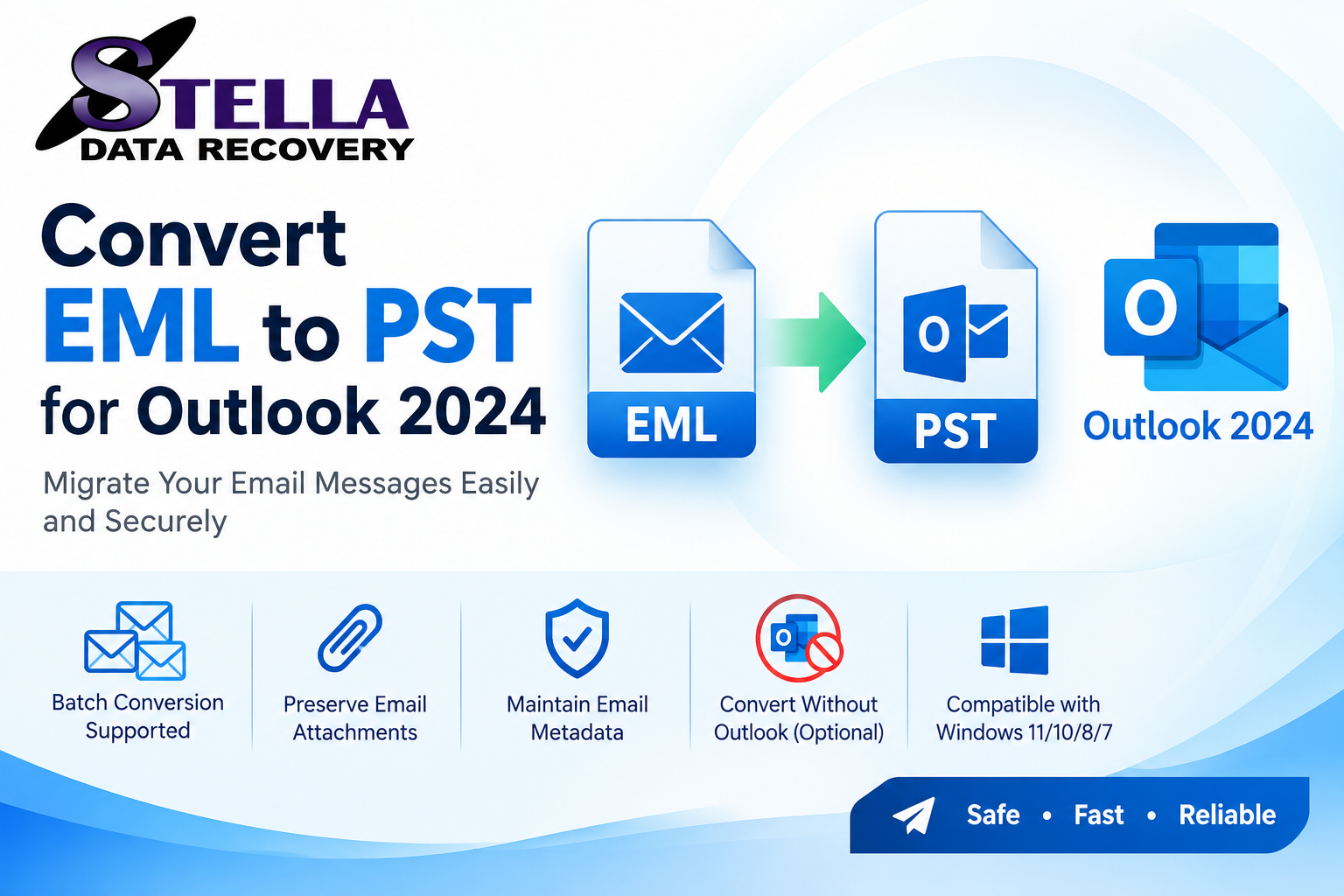
Are you looking for a reliable Windows Email Conversion Tool to migrate emails, manage mailbox data, or convert email files into a format supported by another application? Whether you are switching email clients, creating an email archive, or migrating business correspondence, choosing the right conversion software can make the process easier and more efficient.
Email messages are stored in different file formats depending on the email application. For example, EML files are commonly used for individual email messages, PST files are associated with Microsoft Outlook, MBOX files are used by several email clients, and OST files are associated with certain Outlook configurations. Moving email data between these formats may require a specialized conversion tool.
In this guide, you will learn what a Windows email conversion tool does, which features to consider, how the conversion process works, and how to select software that meets your email migration requirements.
What Is a Windows Email Conversion Tool?
A Windows Email Conversion Tool is software designed to convert email messages or mailbox data from one supported format to another on a Windows computer.
Depending on the product, it may support formats such as:
-
EML: Individual email message files used by various email clients.
-
PST: An Outlook data file capable of storing multiple messages and other supported Outlook items.
-
MBOX: A mailbox format used by applications such as Thunderbird and other compatible email clients.
-
OST: An Outlook offline data file associated with certain account configurations.
-
OLM: A data file format used by Outlook for Mac.
-
NSF: A database format associated with HCL Notes.
-
EDB: An Exchange database format used in Microsoft Exchange environments.
Not every converter supports all these formats. Before purchasing software, check the vendor's documentation to confirm that it supports your specific source and destination formats.
Why Do You Need Email Conversion Software for Windows?
Email conversion software can help individuals and organizations manage email data more effectively.
1. Email Client Migration
When switching from one email application to another, you may need to convert messages into a format supported by the destination application. A suitable conversion tool can help prepare your email data for migration.
For example, users with EML files may need to convert them to PST before using a compatible Outlook workflow.
2. Email Backup and Archiving
Email archives often contain important business records, customer correspondence, invoices, and project discussions. Converting email data into a suitable archive format can make long-term organization easier.
However, conversion is not a substitute for a verified backup. Keep an untouched copy of your original data until you confirm that the converted files are usable.
3. Compatibility Between Email Applications
Different email applications use different storage formats. A conversion tool can bridge some of these differences, helping users transfer messages between supported platforms.
4. Bulk Email Conversion
If you have hundreds or thousands of email files, converting them individually can be time-consuming. Software with batch-processing capabilities may help process multiple files or folders together.
5. Business Email Management
Organizations may need to consolidate archived email data, prepare messages for migration, or make legacy correspondence accessible to authorized employees. The appropriate tool depends on the source format, destination system, and data-governance requirements.
Essential Features of a Windows Email Conversion Tool
Choosing software based only on its name or price can lead to compatibility problems. Evaluate the following features before making a decision.
Support for Multiple File Formats
Look for software that explicitly supports your source and destination formats. For example, if you need to convert EML to PST, confirm that the product supports that exact conversion rather than assuming that general email conversion capabilities are sufficient.
Batch Conversion
Batch conversion allows users to process multiple email files in a single operation, when supported. This can be useful for large email archives and recurring migration tasks.
Check whether the tool imposes limits on file counts, attachment sizes, or total data volume.
Attachment and Metadata Handling
Email messages may contain important attachments and information beyond the message body. Look for documented support for sender and recipient details, dates, subjects, supported attachments, and relevant message headers.
Test the results before converting an entire archive because preservation depends on the source data and software implementation.
Preview Functionality
A preview feature allows you to inspect selected messages before conversion. It can help identify unreadable files or unexpected content early in the process.
Windows Compatibility
Check the supported Windows versions, hardware requirements, installation requirements, and any dependencies on other applications.
If you need to create PST files without Outlook installed, verify that the software explicitly supports standalone PST creation.
Security and Privacy
Email files may contain confidential information. Choose a reputable vendor, review its privacy policy, and understand whether conversion occurs locally or involves uploading data to a remote service.
For sensitive business data, consider access controls, encryption, and organizational compliance requirements.
Technical Support and Licensing
Review the license terms, product updates, support channels, and trial restrictions. A free trial can help you assess compatibility before committing to a purchase.
How to Use a Windows Email Conversion Tool
Although individual applications have different interfaces, most conversion tools follow a similar process.
Step 1: Identify the Source and Destination Formats
Determine which format your email data currently uses and which format the destination application requires.
For example, your task might involve converting EML files to PST, MBOX files to PST, or OLM files to another supported format.
Step 2: Back Up the Original Data
Create a separate copy of your original email files or mailbox data. Make sure the backup is accessible before starting the conversion.
Step 3: Install a Compatible Conversion Tool
Download the software from the official vendor website. Confirm that it supports your source and destination formats and your Windows version.
Step 4: Select the Source Files
Launch the application and add the email files or folders you want to convert. If batch processing is available, select the relevant collection.
Step 5: Choose the Output Format
Select the destination format and specify where the converted files should be saved. Review any options related to folder structure, attachments, and message metadata.
Step 6: Run the Conversion
Start the process and wait for it to complete. Processing time depends on the amount of data, attachment sizes, computer performance, and software capabilities.
If errors occur, review the software's logs or messages and try a smaller batch when appropriate.
Step 7: Verify the Converted Emails
Check the resulting files using a compatible application. Compare several messages with the originals, including messages with attachments, HTML formatting, and non-English characters.
Do not delete the original files until you have confirmed that the converted data is usable.
Free vs. Paid Windows Email Conversion Tools
Should you choose a free utility or purchase professional email conversion software? The answer depends on the size and complexity of your project.
| Consideration | Free tools | Paid tools |
|---|---|---|
| Small conversion tasks | May be sufficient | May provide extra convenience |
| Batch processing | Varies | Depends on the product |
| File format support | Often varies | Check supported formats |
| Preview features | Varies | Varies by product |
| Technical support | May be limited | Depends on the license |
| Export restrictions | May apply | Review license terms |
| Large migrations | Depends on capabilities | May offer additional controls |
Paid software is not automatically more accurate or secure. Evaluate documented features, test results, privacy practices, and total cost before choosing a solution.
Common Email Conversion Problems and Solutions
Conversion Errors
Some files may be incomplete, corrupted, or unsupported. Test the original file in a compatible application and review the converter's error report.
Missing Attachments
Confirm that the original message contains the attachment and that the chosen tool supports its format. Test multiple examples before processing the full archive.
Formatting Differences
HTML messages, embedded images, and character encodings may display differently across applications. Compare the converted messages with the originals.
Incompatible Output Files
If the destination application cannot open the converted file, verify that the correct output format was selected and that the file was created successfully.
Slow Conversion
Large archives and attachments can increase processing time. Try smaller batches and ensure sufficient disk space is available.
How to Choose the Best Windows Email Conversion Tool
Before buying or installing software, ask these questions:
-
Does it support my exact source and destination formats?
-
Is it compatible with my Windows version?
-
Can it process multiple files or folders?
-
Does it document attachment and metadata handling?
-
Can it operate without the original email application, if necessary?
-
Does it provide a trial or a way to test conversion quality?
-
Are its privacy policy, licensing terms, and support options clear?
Answering these questions will help you choose a solution that fits your migration needs instead of paying for unnecessary features.
Frequently Asked Questions
What is the best Windows Email Conversion Tool?
The best tool depends on your source format, destination format, data volume, and required features. Choose a product that supports your exact conversion scenario and test it with representative files.
Can I convert email files without installing the original email application?
Some converters support standalone processing, while others require the original application or additional components. Check the vendor's system requirements.
Can a Windows email converter preserve attachments?
Many tools support attachments, but preservation depends on the formats involved and the software. Always validate the results.
Is free email conversion software safe?
Safety depends on the provider and the application. Download from reputable sources, review permissions and privacy policies, and scan installers before use.
Can I convert thousands of emails at once?
Some tools support bulk conversion. Verify their file limits, performance requirements, and license restrictions before processing a large collection.
Conclusion
A Windows Email Conversion Tool can simplify email migration, format compatibility, and email archiving when you choose software that supports your specific requirements.
Prioritize source and destination compatibility, batch processing, attachment handling, data security, and transparent licensing. Back up your original files, test a small sample, and verify the output before relying on the converted data.
Ready to simplify your email migration? Explore a Windows-compatible email conversion solution, test its capabilities, and choose the tool that best matches your email formats and workflow.










Comments (0)