

How to Use QuickBooks Database Server Manager to Share Company Files

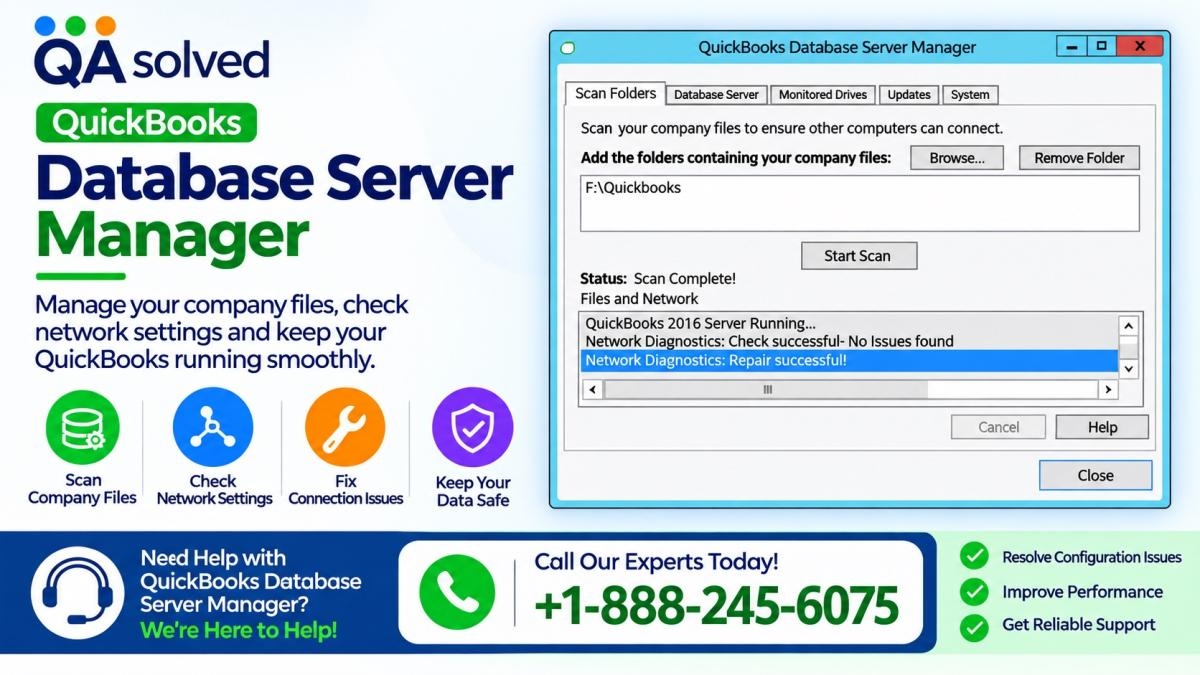
QuickBooks Database Server Manager is an essential tool for businesses that need to access their QuickBooks Desktop company files from multiple computers. It allows users connected to the same network to work with shared company data without moving files between computers. By setting up this tool correctly, businesses can improve their multi-user workflow and make financial information accessible to authorized team members.
The QuickBooks Database Server Manager runs on the server computer, which stores the company files. It helps QuickBooks Desktop work in a multi-user environment by managing access to these files over the network.
However, you do not need this tool if you use QuickBooks Desktop on only one computer and do not plan to share your company files with other users.
In this guide, you will learn how to download, install, configure, and use QuickBooks Database Server Manager to share company files securely across your network.
What Is QuickBooks Database Server Manager?
QuickBooks Database Server Manager is a utility included with the QuickBooks Desktop installation package. It helps host company files so that other computers on the same network can access them.
For example, a business may store its QuickBooks company file on a central office computer while employees use QuickBooks Desktop on their individual workstations. The Database Server Manager helps these computers connect to the hosted company file.
Its main benefits include:
- Multi-user access: Allows multiple authorized users to work with a shared company file, subject to the QuickBooks version and licensing requirements.
- Network file hosting: Helps other computers access company files stored on the server.
- Database management: Supports the database services required for QuickBooks Desktop multi-user access.
- Centralized storage: Keeps company files in a shared location instead of distributing separate copies across different computers.
- Network monitoring: Helps administrators manage the environment used to access shared QuickBooks company files.
Before setting up the tool, ensure that your server computer meets the system requirements for your QuickBooks Desktop version.
How to Download QuickBooks Database Server Manager
You do not need to download QuickBooks Database Server Manager separately because it is included in the QuickBooks Desktop installation package.
Follow these steps to obtain the required installation file.
- Visit the official Intuit website and locate the QuickBooks Desktop installer for your product and version.
- Download the appropriate installation file.
- If QuickBooks Desktop is already installed on your server computer, check for available updates.
- Install the latest supported updates for your QuickBooks version.
The Database Server Manager receives applicable updates through the QuickBooks Desktop installation and update process.
Important: Always use an official Intuit installation source and choose the installer that matches your QuickBooks Desktop version. Installing an incompatible version may affect your multi-user setup.
Steps to Install QuickBooks Database Server Manager
Install QuickBooks Database Server Manager on the computer that stores and hosts your company files. Before starting, close QuickBooks Desktop and other open programs on the server.
Step 1: Open the QuickBooks Installation File
Locate the downloaded installation file, typically named Setup_QuickBooks.exe, and open it.
Follow the instructions displayed by the installer. If the installation process requests your QuickBooks product number or license information, enter the required details.
Step 2: Select the Correct Installation Type
When the installer asks you to choose an installation type, select Custom or Network options and click Next.
Avoid selecting Express Install if you need to preserve an existing QuickBooks installation. Express Install may replace the existing version, which could create problems if you need that version for your business operations or troubleshooting.
Step 3: Choose Your Network Setup
QuickBooks Desktop provides installation choices based on how you plan to use the server computer.
Option 1: I'll be using QuickBooks Desktop on this computer, AND I'll be storing our company file here.
Choose this option if you want to run QuickBooks Desktop on the server and store your company files on the same computer. This setup includes the Database Server Manager and the QuickBooks Desktop program.
Option 2: I will NOT be using QuickBooks Desktop on this computer.
Choose this option if the computer will act only as a server for hosting company files and will not be used to run QuickBooks Desktop for regular bookkeeping work.
Select the option that matches your business requirements, then click Next.
Step 4: Complete the Installation
Review your installation choices and click Install. If Windows displays a permission prompt, authorize the installation if you trust the installer and obtained it from an official source.
Wait for the installation to finish, then follow any remaining instructions on the screen.
QuickBooks may create a Windows service account for the installed Database Server Manager version. For example, the service account name for a particular release may resemble QBDataServiceUserXX, where the suffix identifies the version.
Make sure the appropriate account and database services have the permissions required to access the folders containing your company files. Use the permissions recommended for your installed QuickBooks version rather than granting unnecessary access.
Important Note About Multiple QuickBooks Versions
If your network uses multiple versions of QuickBooks Desktop, Intuit's installation guidance recommends installing the oldest version first and proceeding to the newest version.
Keep each installation aligned with the corresponding QuickBooks release. This helps reduce version-related database service and hosting problems.
How to Configure QuickBooks Database Server Manager
QuickBooks Database Server Manager generally works with its default configuration. However, administrators may need to review the Windows service settings when troubleshooting startup or hosting problems.
Changing service settings incorrectly can interrupt access to company files. Before making changes, confirm the installed QuickBooks version and follow the applicable Intuit guidance.
Step 1: Open Windows Services
- Open the Windows Start menu.
- Type Services in the search box.
- Select the Services application.
- Find the QuickBooks database service associated with your installed version, such as QuickBooksDBXX.
The XX represents the relevant version identifier. The exact service name depends on your QuickBooks release.
Step 2: Check the Service Status
Double-click the appropriate QuickBooks database service to open its properties.
On the General tab, review the Service status.
If you are following a troubleshooting procedure that requires restarting the service, stop it before changing the settings. Be aware that stopping the database service can temporarily disconnect users from hosted company files.
Step 3: Review the Startup Type
Check the Startup type field.
If your troubleshooting instructions call for the service to start automatically with Windows, select Automatic from the dropdown menu.
Do not change the startup type without understanding your hosting requirements. Follow the recommended settings for your QuickBooks Desktop release.
Step 4: Review the Log On Settings
Open the Log On tab and review the account used to run the database service.
Some setup instructions may recommend using the Local System account, but the appropriate account depends on your installation and security configuration. Changing the service account can affect its access to network folders and company files.
For this reason, retain the existing configuration unless the official instructions for your specific setup recommend a change.
Step 5: Configure Recovery Options
Open the Recovery tab to review how Windows responds if the database service fails.
Depending on your configuration, you may be able to select Restart the Service for the first, second, and subsequent failures.
Use the recovery settings recommended for your installed QuickBooks version and business environment.
Step 6: Start the Database Service
Return to the General tab and start the service if you stopped it during troubleshooting.
Confirm that its status changes to Running or Started, depending on how Windows displays the status.
Once the service is running, check whether other computers can access the hosted company file. If the problem continues, review the network, folder permissions, and firewall configuration.
How to Scan Company Files Using Database Server Manager
After installing QuickBooks Database Server Manager, you may need to scan the folders that contain your company files. Scanning helps the utility identify company files that need to be hosted on your network.
Follow these general steps:
- Open QuickBooks Database Server Manager from the Windows Start menu.
- Locate the folder scanning section.
- Select the option to add or browse for the folder containing your QuickBooks company files.
- Choose the appropriate folder and start the scan.
- Wait for the scan to finish.
- Verify that the company files are listed and available for network hosting.
The exact interface may differ by QuickBooks version. If the tool cannot locate your company files, confirm that you selected the correct folder and that the database service has permission to access it.
Tip: Store your company files in a dedicated folder with appropriate permissions. Avoid moving or renaming hosted files while users are working in them.
How to Configure Firewall Permissions for QuickBooks Database Server Manager
Windows Firewall or third-party security software may block communication between QuickBooks Desktop and the Database Server Manager. When this happens, users may experience multi-user access errors or difficulty connecting to the company file.
To prevent these issues, review the firewall and antivirus settings on the server computer.
- Allow the required QuickBooks Database Server Manager services through the firewall.
- Confirm that the necessary ports are open for your installed QuickBooks version.
- Follow Intuit's official port configuration instructions instead of opening unnecessary ports.
- Check that antivirus software is not blocking QuickBooks database processes or legitimate company file access.
- Verify that client computers can communicate with the server over the intended network.
Only create firewall exceptions for trusted applications and the network traffic required by your setup. Avoid disabling the firewall entirely as a permanent solution.
If users still cannot connect, check that network discovery, file permissions, and the hosting configuration are correct.
Common QuickBooks Database Server Manager Problems
Even after installation, QuickBooks Database Server Manager may not work as expected. Several configuration issues can prevent users from opening shared company files.
QuickBooks Database Server Manager Is Not Running
The database service may have stopped or failed to start. Open Windows Services and check the service status for the relevant QuickBooks version. Review the service configuration and Windows error messages before making changes.
QuickBooks Company File Is Not Showing
If the company file does not appear after scanning, confirm that you selected the correct folder. Also verify that the company file exists in that location and that the database service account can access it.
QuickBooks Multi-User Mode Is Not Working
Multi-user access problems may result from firewall restrictions, incorrect hosting settings, missing folder permissions, or network connectivity issues. Confirm that the server hosts the company file and that the client computers connect to the correct server.
QuickBooks Database Server Manager Cannot Access the Folder
Review the permissions assigned to the folder containing your company files. Make sure the appropriate QuickBooks database service account has the access required by your installation.
If the problem continues, consult the official Intuit troubleshooting instructions for your version before changing Windows security settings.
Final Thoughts
QuickBooks Database Server Manager helps businesses share QuickBooks Desktop company files across a network and supports multi-user accounting workflows. To use it effectively, install the utility on the computer hosting your company files, select the appropriate network installation option, and scan the relevant folders.
You should also review firewall permissions, folder access, and database service status to ensure that other computers can connect successfully.
For the best results, keep QuickBooks Desktop updated to a supported release and follow the configuration instructions for your specific version. If you encounter persistent hosting or multi-user errors, troubleshoot the network and service settings carefully before changing permissions or reinstalling the software.
FAQs
1. What is QuickBooks Database Server Manager?
QuickBooks Database Server Manager is a utility included with QuickBooks Desktop that helps host company files on a network. It allows multiple authorized users to access shared company files from different computers.
2. How do I download QuickBooks Database Server Manager?
You can install QuickBooks Database Server Manager through the QuickBooks Desktop installation package. If QuickBooks Desktop is already installed, check for available updates to ensure you have the appropriate database manager components.
3. Where should I install QuickBooks Database Server Manager?
Install QuickBooks Database Server Manager on the server computer that stores your QuickBooks company files. This computer manages the database services needed for other workstations to access shared files.
4. How do I use QuickBooks Database Server Manager to share company files?
Install the utility on the server, configure the required network permissions, and scan the folders containing your company files. Then, verify that the database service is running and that other computers can access the shared company file.
5. Do I need QuickBooks Database Server Manager for single-user mode?
You generally do not need QuickBooks Database Server Manager if you use QuickBooks Desktop on only one computer and do not share company files over a network. The utility is primarily intended for multi-user hosting environments.
6. Why is QuickBooks Database Server Manager not working?
The utility may stop working because of database service problems, firewall restrictions, incorrect folder permissions, outdated software, or network connectivity issues. Check the service status, verify folder access, and review the firewall settings for your QuickBooks version.
7. How do I scan company files in QuickBooks Database Server Manager?
Open QuickBooks Database Server Manager on the server computer and locate the folder scanning section. Browse to the folder containing your company files, select it, and start the scan. Once completed, verify that the files are available for hosting.
8. How do I restart QuickBooks Database Server Manager?
Open the Windows Services application, locate the database service associated with your QuickBooks version, and check its status. If a restart is necessary, stop and restart the service according to the applicable troubleshooting instructions. Remember that connected users may temporarily lose access during the restart.
9. Why can't other computers access my QuickBooks company file?
Other computers may be unable to access the company file because the server is offline, the database service is stopped, firewall rules block communication, or folder permissions are incorrect. Confirm that the server is running and hosting the file, then check network connectivity and the required permissions.
10. Can I install multiple versions of QuickBooks Database Server Manager?
Yes, a network may require database components for multiple QuickBooks Desktop versions. Follow Intuit's installation guidance for each release, install older versions before newer ones when recommended, and ensure that each version's database services and hosting settings are configured correctly.
11. Does QuickBooks Database Server Manager update automatically?
The Database Server Manager receives applicable updates through the QuickBooks Desktop installation and update process. Check for updates that apply to your installed version and follow Intuit's instructions to keep the software components compatible.
12. How do I fix firewall issues with QuickBooks Database Server Manager?
Review Windows Firewall and antivirus settings on the server computer. Allow the required QuickBooks applications and database services, and configure the ports specified for your installed version. Avoid disabling firewall protection permanently or opening unnecessary ports.















Comments (0)