

How to Fix Bank Connection Error 324 in QuickBooks Online


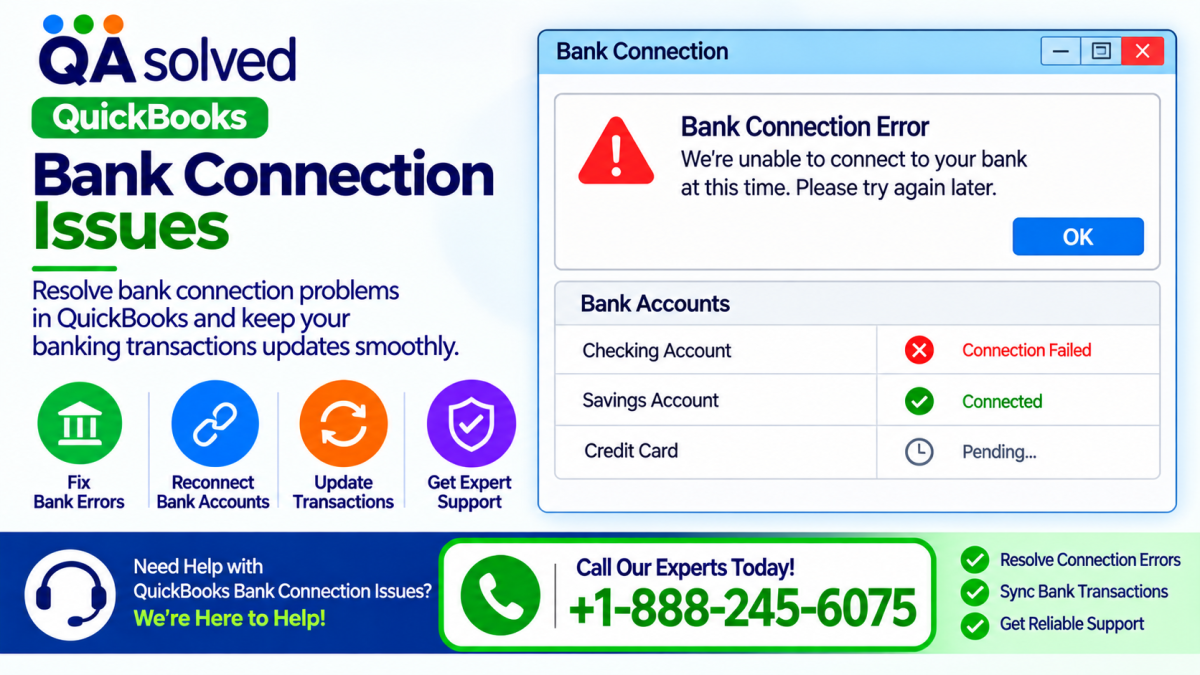
QuickBooks Online helps businesses manage their finances by connecting bank accounts and automatically importing transactions. However, users may sometimes encounter QuickBooks Online bank connection error 324, which prevents the software from locating a previously connected bank account.
This error usually occurs when QuickBooks cannot identify your bank account or no longer receives transaction data from it. Your bank account may still be active, but changes to your account details, login credentials, or authorization settings can interrupt the connection.
The same issue can affect users of Intuit Enterprise Suite. Fortunately, you can often resolve error 324 by updating your bank connection, correcting account selections, or reconnecting with the original banking credentials.
This guide explains the common causes of QuickBooks error 324 and provides step-by-step solutions to restore your bank feed.
What Causes QuickBooks Bank Connection Error 324?
Understanding the cause of the problem can help you choose the right troubleshooting method. The following situations commonly trigger error 324:
· Updated bank account details: Your bank may have changed your account number, replaced a debit card, or updated other account information.
· Closed or suspended accounts: Your bank may have stopped sharing transaction data for an account that is no longer active.
· Different login credentials: Reconnecting with another person's banking credentials can prevent QuickBooks from matching your existing accounts.
· Incorrect account selection: Choosing only certain accounts during bank reauthorization can remove access to previously connected accounts.
· Multiple QuickBooks companies: Using the same banking credentials across several QuickBooks companies can cause connection conflicts when account permissions change.
· Authorization issues: Your bank may require you to renew permissions before QuickBooks can download transactions.
Before trying the solutions below, remember two important practices. First, have one designated person manage bank connections for your QuickBooks company. Second, select All Accounts or Consent All whenever your bank asks which accounts QuickBooks can access.
Solution 1: Fix Error 324 After Updating Bank Account Details
If your bank recently changed your account information, QuickBooks may no longer recognize the connected account. Updating the connection can help QuickBooks match the new details to your existing account.
Follow these steps:
1. Sign in to QuickBooks Online.
2. Select All apps, then choose Accounting and Bank transactions.
3. Locate the bank account displaying error 324.
4. Select Fix now.
5. Sign in using your current bank credentials.
6. When prompted to choose which accounts to share, select All Accounts or Consent All.
7. Map the updated bank account to the existing account in QuickBooks.
8. Complete the connection process.
After reconnecting, check whether your bank transactions are downloading again.
Important: You usually do not need to disconnect the account when its details have changed. Mapping the updated bank account to the existing QuickBooks account helps preserve your transaction history and existing categorization rules.
Solution 2: Reconnect the Bank Account When Fix Now Doesn't Work
Sometimes, the Fix now option does not resolve the problem, or your updated bank account does not appear during reconnection. In this situation, disconnecting and reconnecting the affected account may help.
Steps to reconnect your bank account
1. Open QuickBooks Online and go to All apps > Accounting > Bank transactions.
2. Find the account showing error 324 and select Fix now.
3. If the problem continues, open the account's connection management options and select Disconnect, where available.
4. Confirm the disconnection.
5. Select Link account or Add account, depending on the interface.
6. Search for your bank and sign in with your current banking credentials.
7. Select the updated bank account.
8. Complete the authorization process.
9. Map the bank account to the existing QuickBooks account instead of creating a new one.
Review your bank feed after reconnecting to confirm that the account is working correctly.
Tip: Always match the new connection to the original QuickBooks account when appropriate. Creating another account unnecessarily can result in duplicate accounts and make transaction reconciliation more difficult.
Solution 3: Disconnect a Closed or Suspended Bank Account
QuickBooks cannot download transactions from a bank account that has been closed or suspended when the bank no longer provides access to its data.
If your bank account is permanently closed, disconnect it from QuickBooks before connecting a replacement account.
How to disconnect an inactive account
1. Sign in to your QuickBooks company.
2. Select All apps > Accounting > Bank transactions.
3. Locate the account showing error 324.
4. Select Fix now to access the relevant connection settings.
5. Open Manage connections, if prompted.
6. Find the closed or suspended account.
7. Select Disconnect and confirm your choice.
Before disconnecting, review any pending transactions and make sure the necessary activity has been recorded in QuickBooks.
Once disconnected, the bank feed will no longer import transactions for that account, and the related connection error should clear.
How to connect a replacement bank account
If you opened a new bank account, follow these steps:
1. Go to All apps > Accounting > Bank transactions.
2. Select Link account.
3. Search for your bank.
4. Sign in with the current banking credentials.
5. Select the new account you want to connect.
6. Complete the setup and review the imported transactions.
Make sure you connect the correct account and avoid duplicating existing financial records.
Solution 4: Use the Original Bank Login Credentials
QuickBooks may display error 324 if you reconnect using different credentials from the ones used when the original bank connection was established.
For example, you might use a spouse's login, a secondary banking profile, or another authorized user's credentials. These credentials may provide access to different accounts, preventing QuickBooks from matching the existing bank feed.
Steps to correct mismatched bank connections
1. Open All apps > Accounting > Bank transactions in QuickBooks Online.
2. Select Manage connections, if available.
3. Review the connected accounts for duplicate or mismatched connections.
4. Disconnect any incorrect connections after confirming which accounts they affect.
5. Reconnect to your bank using the original credentials.
6. Select All Accounts or Consent All when prompted.
7. Choose the appropriate account for your QuickBooks company.
8. Complete the connection and verify the bank feed.
Using the same credentials consistently can help prevent connection conflicts.
For the best results, assign one person to manage bank connection setup and maintenance for the company.
Solution 5: Select All Accounts When Reauthorizing Your Bank
Another common cause of QuickBooks Online error 324 is selecting different accounts during bank reauthorization.
When you renew a bank connection, your bank may ask which accounts QuickBooks can access. If you select only a few accounts instead of all available accounts, the bank may remove authorization for previously selected accounts. QuickBooks may then lose access to those accounts and display error 324.
How to restore the correct bank authorization
1. Sign in to the QuickBooks company experiencing error 324.
2. Go to All apps > Accounting > Bank transactions.
3. Select Link account.
4. Search for your bank and sign in.
5. When asked which accounts to share, select All Accounts or Consent All.
6. Continue to the account selection screen in QuickBooks.
7. Choose only the accounts you want to use in that particular company.
8. Complete the setup and review your bank feed.
Selecting all accounts during authorization does not mean QuickBooks must add every bank account to your books. You can still choose which accounts to connect to the company on the following screen.
This distinction is especially important when you use several bank accounts but only need some of them for a particular business.
Solution 6: Resolve Error 324 Across Multiple QuickBooks Companies
Businesses that manage multiple QuickBooks companies with the same bank login may experience recurring error 324 messages.
This can happen because the bank applies the most recent account selection to the shared login. When one QuickBooks company reconnects and selects only certain accounts, the bank may stop sharing the remaining accounts with other companies using the same credentials.
As a result, fixing the bank connection in one company may cause error 324 to appear in another.
Steps to resolve multi-company bank connection issues
1. Sign in to the QuickBooks company displaying error 324.
2. Open All apps > Accounting > Bank transactions.
3. Select Link account.
4. Search for your bank and sign in using the shared banking credentials.
5. Select All Accounts or Consent All when asked which accounts to share.
6. On the next screen, select only the accounts needed for the current QuickBooks company.
7. Complete the connection process.
8. Switch to your other QuickBooks companies.
9. Refresh their bank feeds and check whether their connections have been restored.
10. If another company still displays error 324, repeat the process for that company.
Important: Select all accounts whenever you reauthorize the shared bank connection. Choosing only specific accounts may interrupt the feeds used by your other companies.
If the issue continues across several companies, contact QuickBooks Support for guidance specific to your bank and account configuration.
Additional Tips to Prevent QuickBooks Error 324
After restoring your bank connection, follow these practices to reduce the chances of encountering the same problem again:
· Assign one connection manager: Avoid having multiple users independently change the same bank connection.
· Use consistent credentials: Reconnect using the original banking profile whenever possible.
· Authorize all accounts: Select All Accounts or Consent All when prompted by your bank.
· Match existing accounts: Link updated bank details to the appropriate existing QuickBooks account to help preserve transaction history.
· Review account status: Confirm that your bank account remains active before attempting to reconnect it.
· Check your bank feed regularly: Review recent transactions to identify connection problems early.
· Avoid unnecessary duplicate accounts: Verify existing connections before adding another bank account.
These measures can help maintain reliable bank feeds and reduce disruptions to your accounting workflow.
When Should You Contact QuickBooks Support?
If none of the troubleshooting methods resolves QuickBooks Online bank connection error 324, contact QuickBooks Support for further assistance.
Before contacting support, collect the following information:
· The name of your bank and the type of account affected.
· Whether you use the same bank login across multiple QuickBooks companies.
· Any recent changes to your account number, debit card, login credentials, or bank account status.
· Whether multiple users manage your company's bank connections.
· The troubleshooting steps you have already attempted.
Providing these details can help support representatives understand the problem and recommend the next steps.
Final Thoughts
QuickBooks Online bank connection error 324 generally occurs when QuickBooks can no longer identify a previously connected bank account or receive its transaction data. Changes to bank details, closed accounts, different login credentials, and incorrect authorization selections can all contribute to the issue.
Start by identifying the cause, then use the appropriate solution to update, reconnect, or disconnect the affected bank account. If you use the same banking credentials across multiple QuickBooks companies, select All Accounts or Consent All whenever you reauthorize the connection.
With the correct account mapping and consistent connection management, you can restore your bank feed, maintain accurate financial records, and reduce the likelihood of recurring bank connection errors.
Frequently Asked Questions
1. What is QuickBooks Online bank connection error 324?
QuickBooks Online bank connection error 324 occurs when QuickBooks cannot locate or recognize a previously connected bank account. It may happen because your bank account details have changed, your authorization has expired, or your bank has stopped sharing account information.
2. How do I fix error 324 in QuickBooks Online?
To fix error 324, sign in to QuickBooks Online, open All apps > Accounting > Bank transactions, and locate the affected account. Select Fix now and reconnect using your current bank credentials. Choose All Accounts or Consent All when prompted, then map the correct account to your existing QuickBooks account.
3. Why is QuickBooks unable to find my bank account?
QuickBooks may be unable to find your bank account if your bank has changed its account details, replaced your card, updated its login system, or changed your account permissions. Confirm that your bank account is active and reconnect it using the correct credentials.
4. Can I fix QuickBooks error 324 without disconnecting my bank account?
Yes. If your bank account details have changed, try selecting Fix now and updating the connection first. Map the updated bank account to the existing QuickBooks account. Disconnecting and reconnecting should be a later troubleshooting step if the initial method does not work.
5. What should I do if the Fix now option does not resolve error 324?
If Fix now does not work, open the bank connection settings and disconnect the affected account if necessary. Then select Link account, search for your bank, sign in with your current credentials, and reconnect the correct account. Avoid creating a duplicate QuickBooks account.
6. How do I fix error 324 after changing my bank login credentials?
Open your bank transactions in QuickBooks Online and review the connection settings. Reconnect using the appropriate banking credentials, preferably the original login used to establish the connection. Select All Accounts or Consent All during authorization and verify that the correct accounts appear in QuickBooks.
7. Why does QuickBooks error 324 keep returning in multiple companies?
Error 324 may recur when multiple QuickBooks companies use the same bank login. Your bank may replace the previous account selection when you reauthorize the connection for one company. Selecting All Accounts or Consent All during every reauthorization can help prevent other companies from losing access to their bank feeds.
8. Will disconnecting my bank account delete my existing QuickBooks transactions?
Disconnecting a bank feed generally stops future transactions from downloading, but it does not ordinarily delete transactions already recorded in QuickBooks. Before disconnecting, review pending transactions and confirm that the existing records are complete. Always verify your records before making changes.
9. How can I prevent bank connection error 324 in QuickBooks Online?
To reduce the likelihood of error 324, assign one person to manage bank connections, use consistent banking credentials, select All Accounts or Consent All during reauthorization, and map updated accounts to their existing QuickBooks records. Check your bank feeds regularly for connection problems.
10. Does QuickBooks error 324 affect Intuit Enterprise Suite?
Yes. Intuit Enterprise Suite users may also encounter bank connection error 324 when QuickBooks cannot identify a connected account or receive its transaction data. Review the account status, confirm the banking credentials, and reauthorize the connection using the appropriate account-sharing settings.
11. What should I do if my bank account is closed?
If your bank account has been permanently closed, disconnect it from QuickBooks after reviewing any pending transactions. You can then select Link account to connect a replacement account. Make sure the new account is active and that you select the correct account during setup.
12. When should I contact QuickBooks Support for error 324?
Contact QuickBooks Support if the error continues after reconnecting your bank account, correcting the credentials, and reviewing the account-sharing permissions. Provide your bank's name, the affected account type, recent banking changes, and information about whether multiple QuickBooks companies share the same login. This information can help support identify the cause.
Comments (0)