

Fix QuickBooks Error 1406 by Repairing Registry Permissions
Fix QuickBooks Error 1406 by repairing Windows registry permissions. Learn the exact steps to grant Full Control and resolve the install error.
QuickBooks Error 1406 registry permissions issues are one of the top reasons the installer fails. When Windows blocks the program from writing a required value to a registry key, you see Error 1406 and the installation stops. Repairing the registry permissions usually resolves the problem quickly.
Here’s the exact process to fix it.
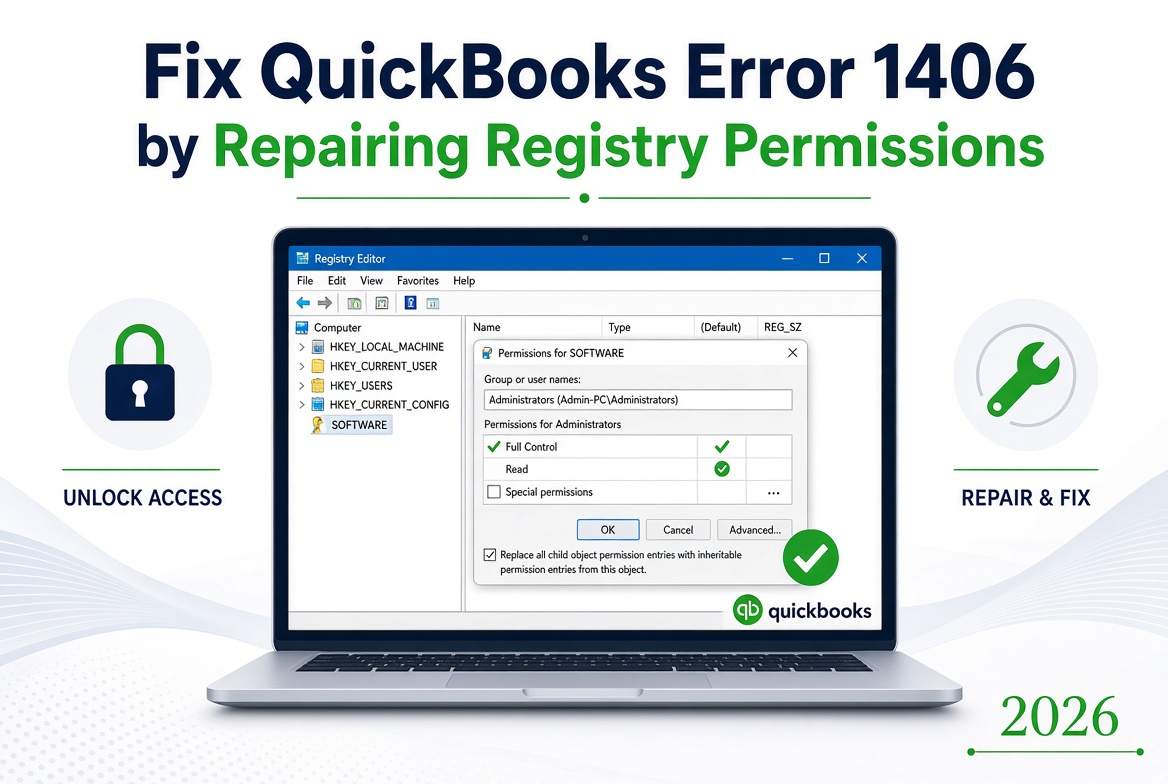
Important Warning Before You Start
Editing the Windows Registry incorrectly can cause system problems.
Always create a backup first:
- Press Windows + R, type regedit, and press Enter.
- Click File → Export.
- Choose a safe location, select All, name the file, and save.
Step-by-Step: Repair Registry Permissions
Step 1: Open Registry Editor
Press Windows + R, type regedit, and press Enter. Click Yes if User Account Control appears.
Step 2: Navigate to the Problem Key
Go to the registry path mentioned in the error message.
In many cases it is under:
HKEY_LOCAL_MACHINE\SOFTWARE
or a specific CLSID / InprocServer32 key related to QuickBooks.
Step 3: Open Permissions
Right-click the key → select Permissions.
Step 4: Grant Full Control
- Select Administrators.
- Check Full Control under Allow.
- Select SYSTEM and also give it Full Control.
- If “Everyone” is listed, you can grant Full Control temporarily (optional).
Step 5: Apply Changes to Subkeys (Recommended)
Click Advanced → check the box that says Replace all child object permission entries with inheritable permission entries from this object → Apply → OK.
Step 6: Close and Restart
Close Registry Editor and restart your computer.
Step 7: Retry the Installation
Right-click the QuickBooks installer and choose Run as administrator. The error should no longer appear.
Additional Tips
- If the key path is very long or hard to find, search for part of the error message inside Registry Editor (Ctrl + F).
- After successful installation, you can leave the permissions as they are or tighten them again if desired.
- Combining this fix with the QuickBooks Install Diagnostic Tool often gives the best results.
When Registry Permissions Are Not the Only Issue
Sometimes the error is also caused by antivirus interference or damaged Microsoft components. If repairing permissions alone does not work, try disabling antivirus temporarily or running the Install Diagnostic Tool from the QuickBooks Tool Hub.
For a complete list of all causes and solutions, see the full guide on QuickBooks Error Code 1406.
Frequently Asked Questions
1. Is it safe to change registry permissions for QuickBooks Error 1406?
Yes, if you create a backup first and only modify the specific key mentioned in the error.
2. Which users need Full Control?
Administrators and SYSTEM should have Full Control. That is usually enough.
3. What if I cannot find the exact registry key?
Use the search function in Registry Editor (Ctrl + F) with part of the error message, or run the QuickBooks Install Diagnostic Tool instead.
4. Do I need to restart after changing permissions?
Yes. Restarting ensures the new permissions are fully applied.
5. Can I reverse the permission changes later?
Yes. You can restore the backup you created or manually adjust the permissions again.
Still seeing QuickBooks Error 1406 after fixing registry permissions?
Call +1-866-408-0444. Specialists can help you locate the correct key and complete the repair.

BizBooksAdvice provides outsourced bookkeeping services USA for small businesses and startups. We offer accurate financial reporting, payroll management, tax preparation, and QuickBooks support to help businesses reduce costs and stay compliant. Our expert team ensures reliable, scalable, and efficient accounting solutions tailored to your needs.









Comments (0)