

QuickBooks Assisted Payroll Setup Guide: Avoid These 5 Costly Mistakes
Most problems with QuickBooks Assisted Payroll do not start when you run payroll — they start during setup. Incorrect employee information, wrong tax withholding details, or a rushed service key entry can create tax filing errors, rejected payments, and expensive corrections later.
This setup guide shows you the five most costly mistakes businesses make when they set up QuickBooks Payroll Assisted, and exactly how to avoid them
.
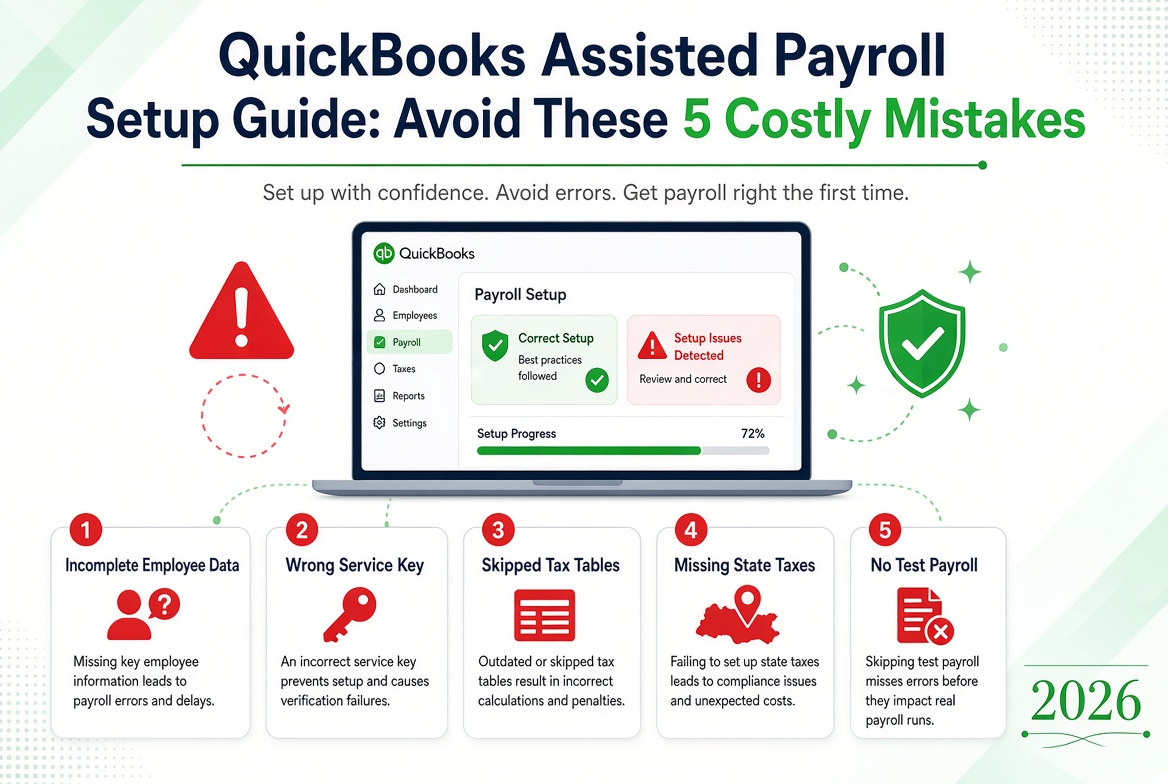
Mistake 1: Entering Incomplete or Incorrect Employee Information
Skipping or rushing employee information and tax withholding setup is the most common source of later problems.
What goes wrong:
Missing Social Security numbers, wrong addresses, incorrect pay rates, or outdated withholding elections lead to incorrect tax calculations and rejected filings.
How to avoid it:
- Enter complete employee details before the first payroll
- Double-check Social Security numbers and addresses
- Confirm federal and state withholding elections with the employee’s W-4
- Update records immediately when an employee has a life change
Mistake 2: Activating with the Wrong or Incomplete Service Key
Entering an incorrect, expired, or mismatched payroll service key delays activation or links the wrong service.
How to avoid it:
- Use only the 16-digit key sent by Intuit for Assisted Payroll
- Copy and paste carefully instead of typing
- Confirm the key matches QuickBooks Desktop Enterprise Assisted Payroll
- Do not reuse a key from another company file
Mistake 3: Skipping the Tax Table Download
Closing QuickBooks before the tax tables finish downloading leaves the system with outdated rates.
How to avoid it:
After entering the service key, keep QuickBooks open and connected to the internet until the tax table download completes. This step is required for accurate calculations.
Mistake 4: Ignoring State and Local Tax Setup
Many users complete federal setup but overlook state withholding, unemployment, or local taxes.
How to avoid it:
- Confirm every state where you have employees is properly set up
- Verify state unemployment insurance (SUI) rates
- Check whether local taxes apply in your locations
- Review tax settings before the first live payroll
Mistake 5: Running the First Payroll Without a Test
Going live without testing often surfaces errors only after money has moved and taxes are due.
How to avoid it:
- Create a test payroll or review a draft thoroughly
- Verify employee net pay, deductions, and tax amounts
- Confirm direct deposit details
- Only submit the first live payroll after everything looks correct
Correct Setup Sequence (Quick Overview)
- Confirm you have a supported version of QuickBooks Desktop and your service key
- Enter the payroll service key and allow tax tables to download
- Complete accurate employee information and tax withholding setup
- Verify federal, state, and local tax settings
- Run a careful review or test before the first live payroll
When these steps are followed, Assisted Payroll can calculate taxes, process payments, and handle filings automatically with far fewer errors.
For the complete A-to-Z explanation of how Assisted Payroll works after setup, including benefits and ongoing best practices, see the full guide on QuickBooks Payroll Assisted.
Frequently Asked Questions
1. How long does a proper QuickBooks Assisted Payroll setup usually take?
Most businesses can complete the core setup in 15–30 minutes if employee information is ready. Adding multiple employees or complex deductions may take longer.
2. Can I change employee tax withholding after setup?
Yes. You can update withholding information at any time. Just make sure the changes are saved before the next payroll run.
3. What happens if I submitted payroll with incorrect employee data?
You may need to issue corrections, amend tax filings, or reverse payments. Fixing data before the first live payroll is much easier and cheaper.
4. Do I need to set up local taxes manually?
In many cases yes. Assisted Payroll handles federal and most state taxes automatically, but local taxes sometimes require manual setup or confirmation.
5. Is it safe to run payroll immediately after activation?
Only after you have verified employee information, tax settings, and completed a careful review. Skipping the review is one of the costliest mistakes.
Need help with setup or want someone to review your configuration?
Call +1-866-408-0444. Specialists can guide you through the process or help fix existing setup issues.

BizBooksAdvice provides outsourced bookkeeping services USA for small businesses and startups. We offer accurate financial reporting, payroll management, tax preparation, and QuickBooks support to help businesses reduce costs and stay compliant. Our expert team ensures reliable, scalable, and efficient accounting solutions tailored to your needs.






Comments (0)