

QuickBooks Database Server Manager Not Working? Troubleshooting Tips

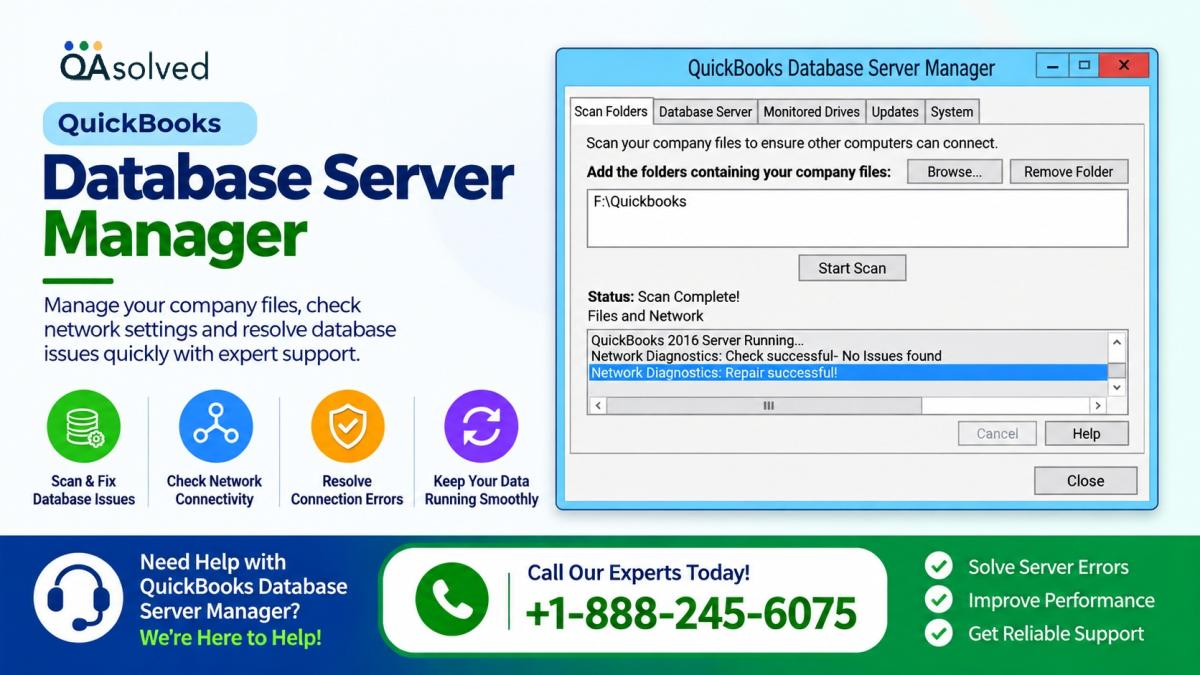
QuickBooks Desktop allows multiple users to work on the same company file through a shared network. To enable this feature, you need the QuickBooks Database Server Manager. This utility helps host company files on a server computer and allows other workstations to access the accounting data in multi-user mode.
The QuickBooks Database Server Manager is an essential tool for businesses that want to manage their accounting activities across multiple computers. It also helps monitor network connections and supports communication between QuickBooks Desktop workstations and the server.
You only need to install this utility on the computer that stores and hosts your company files. If you use QuickBooks Desktop on a single computer and do not need multi-user access, installing the Database Server Manager is generally unnecessary.
In this guide, we will explain how to download, install, configure, and use QuickBooks Database Server Manager to share your company files over a network.
What Is QuickBooks Database Server Manager?
QuickBooks Database Server Manager is a utility that allows multiple users to access a company file stored on a central server computer. It manages the database services required for QuickBooks Desktop multi-user hosting.
When you install and configure this tool correctly, other computers connected to the same network can access the hosted company file without storing separate copies of the data.
Here are some important functions of the Database Server Manager:
-
Company file hosting: Allows multiple workstations to access company files stored on a server.
-
Network management: Helps manage connections between the server and workstations.
-
Multi-user access: Supports multiple users working on the same company file.
-
Database monitoring: Helps monitor QuickBooks database services.
-
File scanning: Scans company file folders to make them available for network hosting.
How to Download QuickBooks Database Server Manager
You do not need to download the QuickBooks Database Server Manager separately. It comes with the QuickBooks Desktop installation package.
Follow these steps to get the required installation files:
-
Visit the official Intuit website.
-
Download the QuickBooks Desktop installation file for the version you use.
-
Save the installer to an accessible location on your server computer.
-
If QuickBooks Desktop is already installed, check for available software updates.
-
Install the latest applicable updates to keep the Database Server Manager current.
The Database Server Manager updates along with the QuickBooks Desktop installation and updates.
Important: If your network uses multiple QuickBooks Desktop versions, install the oldest version first and then proceed with the newer versions.
How to Install QuickBooks Database Server Manager
Install the Database Server Manager on the computer that stores your QuickBooks company files. This computer acts as the server and provides access to other computers on the network.
Before starting, close QuickBooks Desktop and other running applications.
Follow these installation steps:
-
Locate the QuickBooks Desktop installation file you downloaded.
-
Double-click the file named Setup_QuickBooks.exe to start the installation.
-
Follow the instructions displayed on the screen.
-
Enter your QuickBooks product number and license number if prompted.
-
When the installation wizard asks you to select an installation type, choose Custom or Network Options.
-
Click Next to continue.
-
Do not select the Express installation option if you need to preserve an existing QuickBooks Desktop installation.
Next, choose the installation option that matches your network requirements.
Option 1: Install QuickBooks Desktop and Database Server Manager
Select I'll be using QuickBooks Desktop on this computer, AND I'll be storing our company file here if you want to use the server computer for both accounting work and company file hosting.
This option installs QuickBooks Desktop and the Database Server Manager on the same computer. It is suitable when you want to run the software and host company files from one system.
Option 2: Install Only Database Server Manager
Choose I will NOT be using QuickBooks Desktop on this computer if you want the computer to function only as a server.
This option installs the Database Server Manager without installing the QuickBooks Desktop application for regular accounting work.
After selecting the appropriate option:
-
Click Next.
-
Review the installation settings.
-
Select Install to begin the process.
-
Allow Windows to complete the installation.
-
Follow any additional instructions displayed by the installer.
Once the installation finishes, the Database Server Manager will be available on your server computer.
Note: QuickBooks creates a separate Windows user account for each Database Server Manager version. For example, the 2023 version may create an account named QBDataServiceUser33. Make sure this account has the required permissions to access the folders containing your company files.
How to Configure QuickBooks Database Server Manager
After installing the utility, you may need to configure its Windows service settings. This helps ensure that the database service starts automatically and can recover after certain service failures.
If you are satisfied with the default configuration, you can skip this section.
Otherwise, follow these instructions:
-
Open the Windows Start menu.
-
Type Services in the search box.
-
Select the Services application.
-
Find the service named QuickBooksDBXX, where XX represents your QuickBooks version.
-
Double-click the service to open its Properties window.
-
Navigate to the General tab.
-
Check the Service Status section.
-
If the service is already running, select Stop before changing its settings.
-
Open the Startup Type dropdown menu.
-
Select Automatic.
-
Navigate to the Log On tab.
-
Select Local System account if this matches your network configuration and security requirements.
-
Open the Recovery tab.
-
Select Restart the Service from the dropdown menus for First Failure, Second Failure, and Subsequent Failures.
-
Return to the General tab.
-
Select Start to restart the QuickBooks Database Server Manager service.
-
Click Apply and OK to save your changes.
After completing these steps, the database service should start automatically when Windows starts.
Important: Service account settings and permissions can vary depending on your QuickBooks version and network configuration. If your existing hosting setup uses a dedicated service account, do not change it to Local System without checking the applicable Intuit instructions.
Additional Steps to Share QuickBooks Company Files
Installing the Database Server Manager is only one part of setting up multi-user access. You must also configure the company file folders and network permissions correctly.
1. Configure Firewall and Antivirus Permissions
Your Windows firewall or antivirus software may block QuickBooks database services from communicating with other computers.
To prevent network connectivity problems:
-
Allow QuickBooks Desktop and Database Server Manager through your firewall.
-
Configure the required inbound and outbound ports for your installed QuickBooks version.
-
Make sure antivirus software does not block access to the company file folders.
-
Check that all workstations and the server can communicate over the same network.
Use the official Intuit firewall port information for your QuickBooks version rather than opening unnecessary ports.
2. Scan Your Company File Folders
After installing the Database Server Manager, scan the folders that contain your QuickBooks company files. This helps the utility identify the files that need network hosting.
Follow these steps:
-
Open QuickBooks Database Server Manager on the server computer.
-
Navigate to the Scan Folders tab.
-
Select Browse or the folder selection option.
-
Choose the folder where your company files are stored.
-
Select Start Scan.
-
Wait for the scanning process to finish.
Once the scan completes, the Database Server Manager will display the scanned folders and company files it identifies.
Make sure the appropriate Windows users and database service accounts have the necessary folder permissions.
3. Enable Multi-User Hosting
After scanning your company files, verify that hosting is configured correctly on the server computer.
Open QuickBooks Database Server Manager and check the hosting status. Make sure the server is configured to host the company files and that the required database service is running.
On workstations, open QuickBooks Desktop and access the company file through its network location. Select multi-user mode when required.
Avoid enabling hosting on multiple computers for the same company file. The server computer should manage the hosting process.
Final Thoughts
QuickBooks Database Server Manager makes it easier for businesses to share company files and manage accounting activities across multiple computers. By installing the utility on the server computer, configuring its database service, and scanning the company file folders, you can prepare your network for QuickBooks Desktop multi-user access.
Make sure your firewall permissions, Windows folder access, and database services are configured correctly. These settings help workstations connect to the server and access the required company files.
If you experience multi-user connectivity problems after completing the setup, review your hosting configuration, network permissions, and QuickBooks database service before making further changes.
Frequently Asked Questions
1. What is QuickBooks Database Server Manager used for?
QuickBooks Database Server Manager allows multiple users to access the same company file over a network. It hosts company files on a central server computer and manages the database services required for QuickBooks Desktop multi-user mode.
2. Do I need to download QuickBooks Database Server Manager separately?
No. QuickBooks Database Server Manager comes with the QuickBooks Desktop installation package. You do not need to download a separate application to install it.
3. Where should I install QuickBooks Database Server Manager?
You should install QuickBooks Database Server Manager on the computer that stores your QuickBooks company files. This computer acts as the server and allows other workstations connected to the network to access the shared files.
4. Can I use QuickBooks Database Server Manager without installing QuickBooks Desktop?
Yes. You can install only the Database Server Manager on a dedicated server computer. During installation, select I will NOT be using QuickBooks Desktop on this computer.
5. How do I update QuickBooks Database Server Manager?
Install the latest available QuickBooks Desktop updates on the server computer. The Database Server Manager receives applicable updates through the QuickBooks Desktop update process.
6. Why is QuickBooks Database Server Manager not working?
The utility may stop working because of incorrect hosting settings, firewall restrictions, damaged installation files, stopped database services, or insufficient folder permissions. Check the QuickBooksDBXX service, review firewall settings, and scan your company file folders.
7. What is the QuickBooksDBXX service?
QuickBooksDBXX is a Windows service responsible for supporting QuickBooks Desktop database hosting. The XX represents the QuickBooks version. This service helps workstations access company files stored on the server computer.
8. How do I scan company files using QuickBooks Database Server Manager?
Open QuickBooks Database Server Manager on the server computer and select the Scan Folders tab. Browse to the folder containing your company files and select Start Scan. The utility will scan the selected location and identify the company files available for hosting.
9. Can multiple users access QuickBooks company files simultaneously?
Yes. QuickBooks Database Server Manager supports multi-user access, allowing multiple authorized users to work on the same company file over a network. However, the number of simultaneous users depends on your QuickBooks Desktop edition and license.
10. Do I need QuickBooks Database Server Manager for single-user mode?
No. If you use QuickBooks Desktop on only one computer and do not share company files over a network, you generally do not need Database Server Manager.
11. Why can't other computers access my QuickBooks company file?
Other computers may fail to access a shared company file because of incorrect hosting settings, firewall restrictions, network connection problems, or insufficient folder permissions. Verify that the Database Server Manager is running and that the company file folder is properly shared.
12. Can I install multiple versions of QuickBooks Database Server Manager?
Yes. You can install Database Server Manager for multiple QuickBooks Desktop versions on the same server. When installing multiple versions, install the oldest version first and then proceed with the newer versions.














Comments (0)