

How to Fix Horizontal Lines on Paper When Printing
Fix horizontal lines on paper when printing by checking printheads, ink or toner levels, drum units, and printer settings to restore print quality.

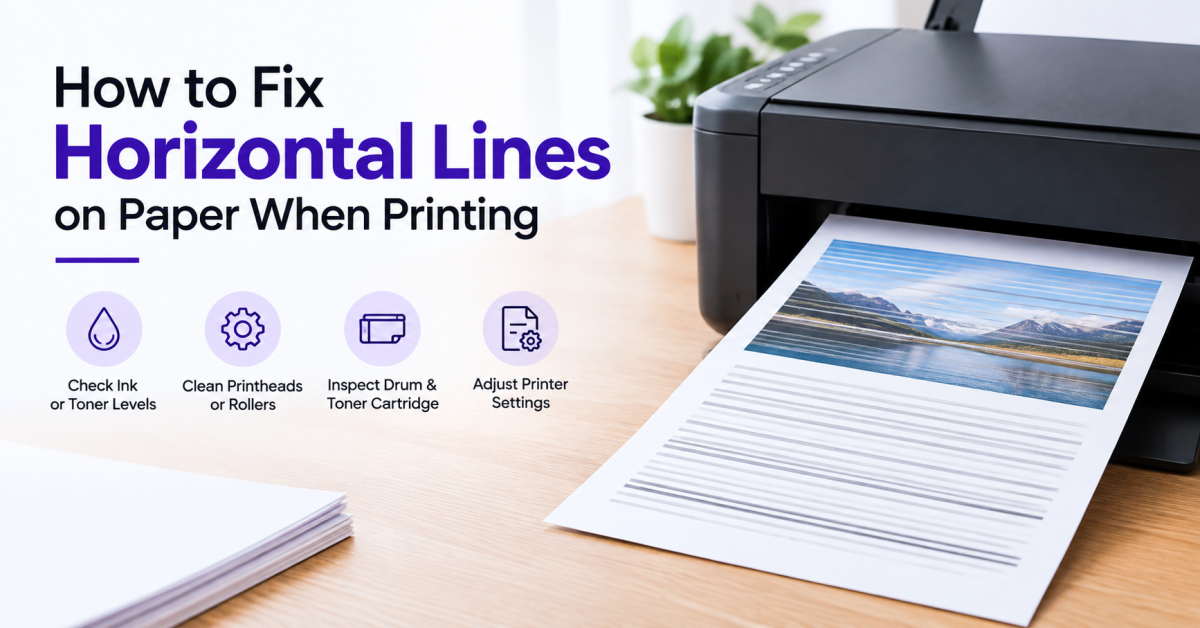
Vertical lines on pages can cause problems with documents, photos, and business reports when printed. They can be shown as white spaces, black lines, grey streaks, or lines that are repeated throughout the page. Most of the time, they are due to clogged printheads, low ink or toner levels, dirty printer parts, or damaged parts.
If your printer is printing lines on paper, try these troubleshooting tips to determine what is causing the problem and to get it to print as it should again.
Common Causes of Horizontal Lines When Printing
1. Clogged or Dirty Printheads
In an inkjet printer, when printheads get clogged, it can lead to uneven distribution of ink on the paper. This can lead to the loss of horizontal lines or portions of text and images. Dried ink may also impact the print quality if the printer has not been utilized for a long time.
2. Low Ink or Toner Levels
Low ink levels may result in faded horizontal bands, uneven color, or loss of detail. Low toner can result in printouts with light spots or inconsistent prints in laser printers. Find out the levels of ink/toner before replacing any part.
3. Issues with the laser printer drum or toner
The laser printer toner cartridge or drum unit is likely to be dirty, old, or damaged if it is streaking. These issues may result in dark horizontal lines, repetition, or uneven toner usage. If the toner cartridge is leaking, it can cause black streaks on the paper.
4. Dirty Rollers or Incorrect Paper Settings
Inside the printer, dust and toner residue or debris can impact the way the paper moves through the printer. Print-quality settings and paper type may also be to blame for poor results, especially with photographs and graphics.
How to Fix Horizontal Lines on Paper When Printing
1. Follow the Printer's Cleaning Cycle.
On a computer or at the printer's control panel, open the printer maintenance settings on your computer. Use the printhead cleaning program, and print a nozzle-check or test page.
Repeat cleaning by using the horizontal lines if they are still present, following the manufacturer's instructions. Do not use too many cleaning cycles, as ink will be used.
2. Check Ink or Toner Levels
Observe the remaining ink or toner on the printer with the printer software or control panel. Change a blank cartridge and make sure to install the new cartridge properly.
Follow the manufacturer's guidelines for handling the toner cartridge with laser printers. Avoid touching sensitive parts of the drum – it could damage them.
3. Check the Drum and Toner Cartridge
Look for any visible damage to the Toner Cartridge or Toner Drum Unit, as well as any leaking of the toner, when observing black horizontal streaks or repeated marks – if any are seen, please consult the manufacturer's instructions. Replace worn parts as required.
This step may be useful when performing troubleshooting for striped laser printer or when printing with occasional streaks.
4. Clean the Printer and Check Paper Settings
Shut off and unplug the printer before cleaning, as it is required to be done. Unplug the printer and shut it off before cleaning it, as allowed. Clear away any paper junk and, if possible, clean the rollers as described in the manual.
Also, choose the right paper size, paper type, and print quality in your printer settings. To see if the horizontal lines are gone, print another test page.
When to Seek Professional Printer Repair
If the problem persists even after you cleaned and replaced empty supplies, it could be a damaged printhead, drum unit, fuser, or another internal component. Do not disassemble internal components unless the manufacturer has indicated they can be serviced by the user.
If any of the printer lines can be seen on the paper, it may impact the quality of the document and productivity. DeviceFixes may be able to diagnose printer streaking and other printing problems or issues, as well as toner-related issues. Click on DeviceFixes Printer Repair Services.
Call for professional help if standard troubleshooting fails to fix the issue.









Comments (0)