

Can I Use a Bluetooth Keyboard, Mouse, or Game Controller with My IPTV Box?
Explore your viewing options: Visit IPTV India to learn more about available services, or review the Indian IPTV Box page for device information. Confirm Bluetooth and accessory support before making a purchase.

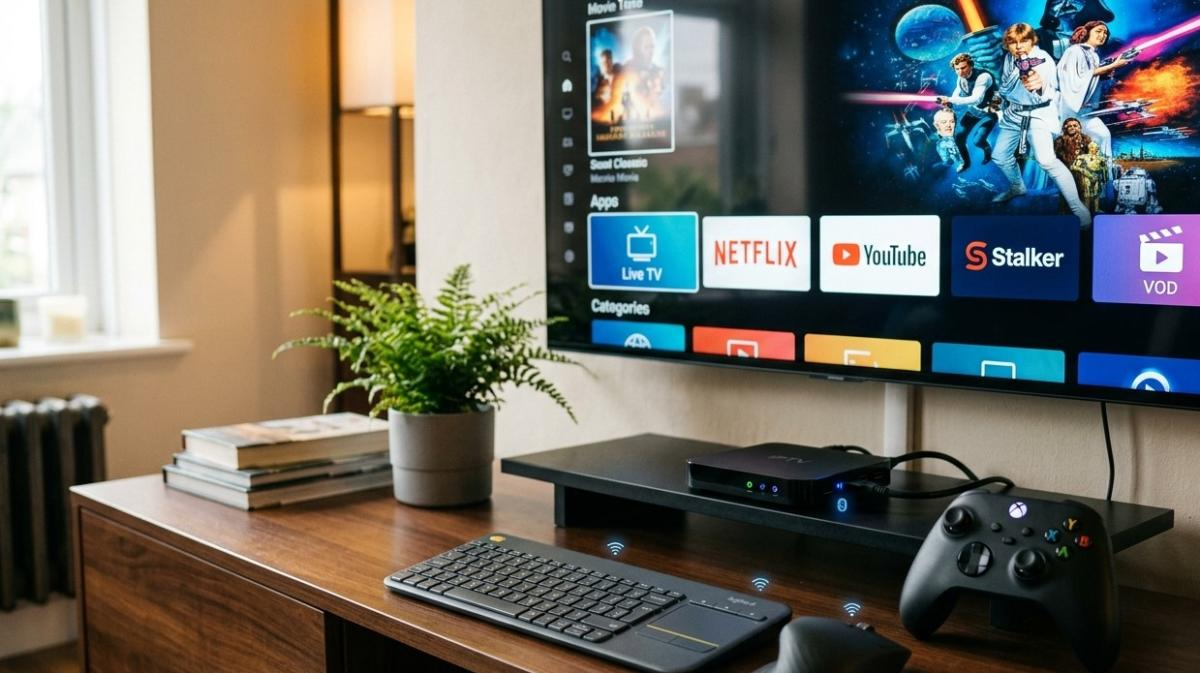
Navigating an IPTV box with a standard remote control is usually straightforward, but typing passwords, searching for programs, and moving through menus can sometimes feel slow. A Bluetooth keyboard, mouse, or game controller may offer a more convenient way to interact with your device, depending on the box's operating system and supported features.
Before connecting an accessory, check your device's Bluetooth compatibility, available settings, and application support. Whether you use an Indian IPTV Box or explore viewing options through IPTV India, choosing compatible accessories can make searching, entering text, and navigating supported applications more convenient.
Table of Contents
-
Can IPTV Boxes Connect to Bluetooth Accessories?
-
How to Connect a Bluetooth Keyboard, Mouse, or Controller
-
What Can You Use Each Accessory For?
-
Common Bluetooth Problems and Solutions
-
Tips for Choosing Compatible Accessories
-
Frequently Asked Questions
-
Final Thoughts and CTA
1. Can IPTV Boxes Connect to Bluetooth Accessories?
Yes, many IPTV boxes support Bluetooth accessories, but compatibility varies by device.
Some Android TV and Google TV devices support Bluetooth keyboards, mice, and selected game controllers. Other streaming boxes may support only certain accessory types, while some basic IPTV devices have no Bluetooth capability at all.
Before purchasing an accessory, check the manufacturer's specifications and supported-device list.
-
Bluetooth keyboard: Useful for typing search terms, passwords, and text in supported apps.
-
Bluetooth mouse: Can make pointer-based navigation easier in applications that support mouse input.
-
Bluetooth game controller: May work with compatible games and applications, but is not guaranteed to control every IPTV menu.
Remember that Bluetooth support alone does not guarantee that every button or feature will work in every application.
2. How to Connect a Bluetooth Keyboard, Mouse, or Controller
The exact steps depend on your IPTV box, but the general process is similar across many compatible devices.
Step 1: Check Bluetooth Availability
Open the device's settings and look for a section such as Remotes and Accessories, Bluetooth, or Connected Devices. If Bluetooth is unavailable, check whether the device supports USB accessories or a compatible wireless receiver.
Step 2: Put the Accessory in Pairing Mode
Turn on your keyboard, mouse, or controller and activate its pairing mode. Refer to the accessory's manual if you are unsure which button to press.
Keep the accessory near the IPTV box while pairing.
Step 3: Search for Available Devices
Open the Bluetooth menu on your IPTV box and select the option to add or pair a new device. Wait for the accessory's name to appear in the list.
Step 4: Complete Pairing
Select the accessory and follow any on-screen instructions. A keyboard may ask you to type a displayed code, while a controller may connect directly.
Step 5: Test the Connection
Try navigating the home screen, typing in a search field, or using the controller in a supported application. If certain buttons do not work, the application or device may not support those functions.
3. What Can You Use Each Accessory For?
Bluetooth Keyboard for Faster Typing
A keyboard is particularly useful when entering long passwords, searching for movies, or typing text into supported applications. Compact keyboards can also save space in a living room.
However, some apps display their own on-screen keyboard or do not support all physical keyboard shortcuts.
Bluetooth Mouse for Navigation
A mouse can help with applications that support a pointer, especially on devices running a more general-purpose operating system.
On television-focused interfaces, mouse support may be limited. A pointer might not appear, or clicking may not work consistently across every menu.
Bluetooth Game Controller for Supported Games
A controller is useful for gaming applications that recognize gamepad input. Some controllers also offer navigation buttons, but their ability to control the IPTV interface varies.
Check whether the device and game support your controller before buying one specifically for this purpose.
4. Common Bluetooth Problems and Solutions
The Accessory Does Not Appear
Make sure the accessory is in pairing mode, has sufficient battery power, and is not already connected to another device. Restart Bluetooth or the IPTV box if necessary.
Pairing Fails
Remove an old pairing entry, then try pairing again. Check whether the accessory supports the Bluetooth version and profiles required by your device.
The Keyboard Connects but Cannot Type
Test it in another compatible app. The issue may be limited to the application or text field rather than the keyboard itself.
The Mouse Moves but Cannot Select Items
Some TV interfaces do not fully support mouse input. Use the original remote or a supported keyboard navigation method instead.
The Controller Does Not Work in Games
Confirm that the game supports your controller and that the controller is paired correctly. Some games require additional configuration.
5. Tips for Choosing Compatible Accessories
Before buying a Bluetooth accessory for your IPTV setup, consider these factors:
-
Compatibility: Verify that your box supports the accessory type.
-
Comfort: Choose a keyboard or controller that is easy to hold and use.
-
Battery life: Rechargeable or long-lasting batteries can reduce interruptions.
-
Range: Choose a device that works reliably from your usual seating position.
-
Ease of pairing: Simple pairing can make everyday use more convenient.
-
Alternative connectivity: Some accessories use a USB wireless receiver instead of Bluetooth. Check whether your IPTV box supports the receiver and has a suitable USB port.
For an Indian IPTV Box, review the device specifications and operating system before choosing accessories. If you mainly watch live television, the standard remote may still be the easiest option, with a keyboard added for occasional searches or password entry.
6. Frequently Asked Questions
Can I connect any Bluetooth keyboard to my IPTV box?
No. Your box must support Bluetooth keyboard input, and the keyboard must be compatible with the device. Check the manufacturer's specifications before purchasing.
Can I use a Bluetooth mouse to control IPTV apps?
Sometimes. Mouse support depends on the device's operating system and the individual application. Some television interfaces are designed primarily for remote-control navigation.
Can I connect a PlayStation or Xbox controller?
Some IPTV and streaming devices support selected PlayStation or Xbox controllers, but compatibility varies by model, operating system, and application. Confirm support before pairing.
Will Bluetooth accessories improve streaming quality?
No. A keyboard, mouse, or controller changes how you interact with the device; it does not directly improve internet speed or video quality.
What if my IPTV box does not have Bluetooth?
Depending on the device, a compatible USB keyboard, mouse, or wireless accessory with a USB receiver may work. Check the available ports and supported accessories first.
7. Final Thoughts and CTA
A Bluetooth keyboard, mouse, or game controller can make an IPTV setup more convenient when your device and applications support the accessory. Keyboards are particularly helpful for searches and passwords, mice can assist with compatible interfaces, and controllers are useful for supported games.
Always check compatibility before buying an accessory, and keep your original remote available for functions that external devices cannot control.
Explore your viewing options: Visit IPTV India to learn more about available services, or review the Indian IPTV Box page for device information. Confirm Bluetooth and accessory support before making a purchase.















Comments (0)