

How Do I Convert an Outlook PST File?
How Do I Convert an Outlook PST File? A Complete Step-by-Step Guide

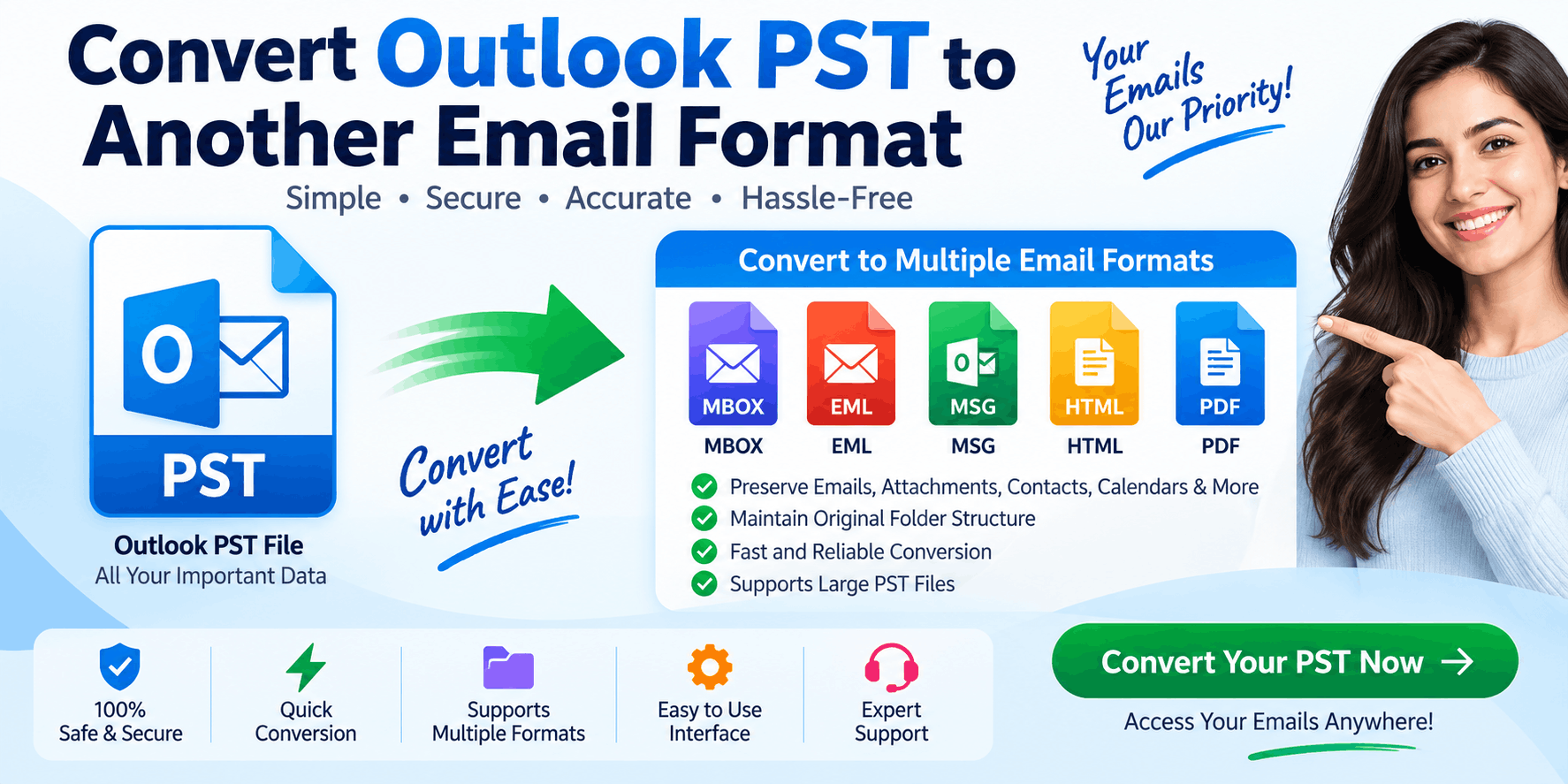
An Outlook PST file can contain years of valuable emails, attachments, contacts, calendars, tasks, notes, and archived conversations. But when you need to move this data to another email platform, save messages in a different format, or migrate an old Outlook archive, you may wonder: How do I convert an Outlook PST file?
The answer depends on what you mean by “convert.” You might want to convert a PST file into another email format such as MBOX or EML, move PST data to another computer, or extract specific Outlook items. The best method depends on your source PST, destination platform, and the type of data you need to preserve.
This guide explains the available methods in simple language while also covering the technical details that matter during a real-world email migration.
What Is an Outlook PST File?
PST stands for Personal Storage Table. It is an Outlook data-file format used to store mailbox information.
A PST file may contain:
- Emails
- Email attachments
- Contacts
- Calendars
- Tasks
- Notes
- Journal items
- Custom folders
- Archived messages
Think of a PST as a digital container for Outlook information.
For example:
Outlook → PST → Emails + Contacts + Calendars + Attachments
Because PST is primarily associated with Outlook, another email application may not be able to read it directly. That is when conversion becomes necessary.
What Does “Convert PST” Actually Mean?
Before choosing a conversion method, identify your objective.
PST to another email format
You may want:
PST → MBOX
or:
PST → EML
This is common when moving from Outlook to another email application.
PST migration to another computer
You may only need to transfer the PST from one computer to another.
In that situation:
Old Computer → PST → New Computer
No format conversion may be necessary if the destination also uses compatible Outlook software.
PST data extraction
Sometimes you only need selected emails, attachments, contacts, or folders.
For this type of task, selective export or conversion can be more appropriate than converting the complete archive.
How Do I Convert an Outlook PST File Using Outlook?
For supported Outlook workflows, the built-in export features may be enough.
Step 1: Open Outlook
Start Outlook on the computer containing the mailbox or PST data you want to work with.
Step 2: Identify the Required Data
Decide whether you need:
- The complete mailbox
- A particular folder
- Contacts
- Calendar data
- Archived emails
Planning this first helps avoid unnecessary data processing.
Step 3: Use Outlook's Export Options
Depending on your Outlook version, use the available data export function to create or work with a PST file.
The exact menus and options vary by Outlook edition, so follow the options displayed in your installation.
Step 4: Select Folders
Choose the folders you need to export when selective export is available.
For example:
Inbox → Sent Items → Contacts → Calendar
Step 5: Complete the Export
Choose the destination location and let Outlook create the PST file.
Afterward, verify that the file exists and that its size looks reasonable.
Can Outlook Directly Convert PST to MBOX?
This is where many users encounter a limitation.
Outlook's native export tools are primarily designed around Outlook-supported formats and workflows. If your destination application requires MBOX, you may need another conversion method.
A common workflow is:
Outlook PST → PST Converter → MBOX → Destination Email Client
Dedicated PST conversion software can simplify this process by reading the PST structure and creating MBOX output.
How to Convert PST to MBOX
MBOX is widely used by various email applications and migration systems.
The typical process is:
Step 1: Back Up the PST
Make a copy of the original PST before conversion.
Step 2: Add the PST to the Converter
Select the PST file in a compatible converter application.
Step 3: Scan the PST
The application analyzes the file and identifies available folders and messages.
Step 4: Preview Mailbox Data
Review the detected folders and messages before conversion.
Check important items such as:
- Inbox
- Sent Items
- Custom folders
- Attachments
Step 5: Choose MBOX
Select MBOX as the output format if supported.
Step 6: Convert
Choose the destination directory and begin conversion.
Step 7: Import MBOX
Once the conversion is finished, import the resulting MBOX data into the target email application.
Always verify the migrated messages before removing the original PST.
How to Convert PST to EML
EML is useful when you need individual email messages rather than one complete mailbox container.
A typical process looks like:
PST → Scan → Select Messages/Folders → EML → Save
The converter may create separate files such as:
message001.emlmessage002.emlmessage003.eml
This format can be useful for email archiving, individual message handling, or migration into applications that support EML.
When choosing a converter, verify whether attachments and message metadata are preserved.
How Do I Convert a Large Outlook PST File?
Large PST files need additional planning because they may contain thousands or millions of mailbox items.
Before starting a large conversion, check:
- Available disk space
- PST file size
- Software file-size limitations
- Temporary storage requirements
- Output format limitations
- Batch conversion support
For example, if your PST is 15 GB, you should not assume that you only need 15 GB of free storage. The conversion process may require additional working space, and the output itself may also consume significant storage.
Selective conversion can help by allowing you to export only the folders you actually need.
Can I Convert a Corrupted PST File?
Sometimes, but the result depends on the condition of the file.
A damaged PST may contain structural errors that prevent normal access through Outlook. Some professional PST conversion applications provide advanced scanning or recovery-oriented functionality designed to identify accessible mailbox content.
However, it is important to understand that:
PST conversion is not automatically the same as PST recovery.
A severely corrupted file may not be fully recoverable.
For a damaged PST, use this workflow:
Create a backup → Work from a copy → Scan → Preview → Convert → Verify
Never experiment directly on the only copy of an important PST file.
How Do I Convert an Outlook PST Without Outlook?
Some third-party PST conversion applications are designed to process PST files without requiring the original Outlook installation.
This can be useful when:
- Outlook is no longer installed
- The old computer is unavailable
- You have only an archived PST file
- You need MBOX or EML output
- The migration is being performed on another workstation
However, this capability varies between products. Check the software's system requirements before choosing a tool.
What Features Should I Look for in PST Converter Software?
If you decide to use dedicated software, do not choose a product based only on the word “best.”
Look for features that match your actual requirements.
PST Preview
Preview allows you to inspect mailbox data before conversion.
Multiple Output Formats
Useful when you need options such as MBOX, EML, MSG, HTML, or PDF.
Folder Structure Preservation
Important when the original organization must be retained.
Attachment Preservation
Critical for business emails containing contracts, invoices, reports, and other documents.
Selective Conversion
Allows you to convert only specific folders or items.
Large PST Support
Useful for large archives and business mailboxes.
Batch Conversion
Helpful when you have multiple PST files to process.
Recovery-Oriented Scanning
Useful for certain damaged or inaccessible PST files.
What Is the Safest Way to Convert PST?
A careful PST conversion workflow looks like this:
1. Back Up the Original
Keep an untouched copy of your PST.
2. Identify the Destination
Determine whether you need Outlook, MBOX, EML, or another supported format.
3. Test the Process
Use a sample or trial conversion when available.
4. Preview the Data
Make sure important folders and messages are visible.
5. Convert
Export the data to the required format.
6. Verify
Check message content, attachments, folder structure, contacts, and calendars.
7. Keep the Original
Do not delete the source PST until the migration has been completely validated.
Common PST Conversion Mistakes
Renaming .PST to Another Extension
Changing the file extension does not actually convert the internal file structure.
Deleting the Original Too Quickly
Always keep a backup until the destination data is verified.
Ignoring Attachments
Open several messages with attachments to make sure the files migrated correctly.
Choosing the Wrong Destination Format
Always check which format your target email application supports.
Skipping Preview
Preview can reveal missing or unreadable data before you commit to a full conversion.
Frequently Asked Questions
How do I convert an Outlook PST file?
The method depends on your goal. You can use Outlook's supported export features for certain Outlook-to-Outlook workflows, or dedicated PST converter software when you need another output format such as MBOX or EML.
Can I convert PST to MBOX?
Yes, with compatible PST conversion software that supports MBOX output.
Can I convert PST to EML?
Yes. Dedicated converters can export individual Outlook messages to EML.
Can I convert PST without Outlook?
Some third-party applications support PST processing without the original Outlook installation. Check the software requirements first.
Can I convert a corrupted PST?
Some tools provide advanced scanning or recovery-oriented functionality, but results depend on the level of corruption.
Will attachments be preserved?
Many converters are designed to preserve attachments, but you should always verify the output before completing a large migration.
Does PST conversion preserve folder structure?
Some software supports folder hierarchy preservation. Confirm this feature before selecting a product.
Final Thoughts
So, how do I convert an Outlook PST file?
The answer depends on where the data needs to go.
For a simple Outlook-to-Outlook migration, transferring or exporting the PST may be enough. When moving to another email application, you may need a dedicated converter to create MBOX, EML, MSG, or another supported format.
The most reliable approach is:
Back up the PST → Identify the destination format → Scan and preview → Convert → Verify the output
For healthy PST files, the process can be straightforward. For large, damaged, or complex archives, professional PST Converter Software can provide additional tools for selective conversion, previewing, filtering, and recovery-oriented processing.
Above all, never treat conversion as complete simply because a new file has been created. Open or import the converted data, check important emails and attachments, confirm the folder structure, and keep your original PST until everything has been verified.








Comments (0)