
Laptop Motherboards: What They Are and Why They Matter
Explore everything about laptop motherboards—from key components and repair tips to compatibility and replacement guides. Learn how to keep your laptop running efficiently.
 davidjohnuk58
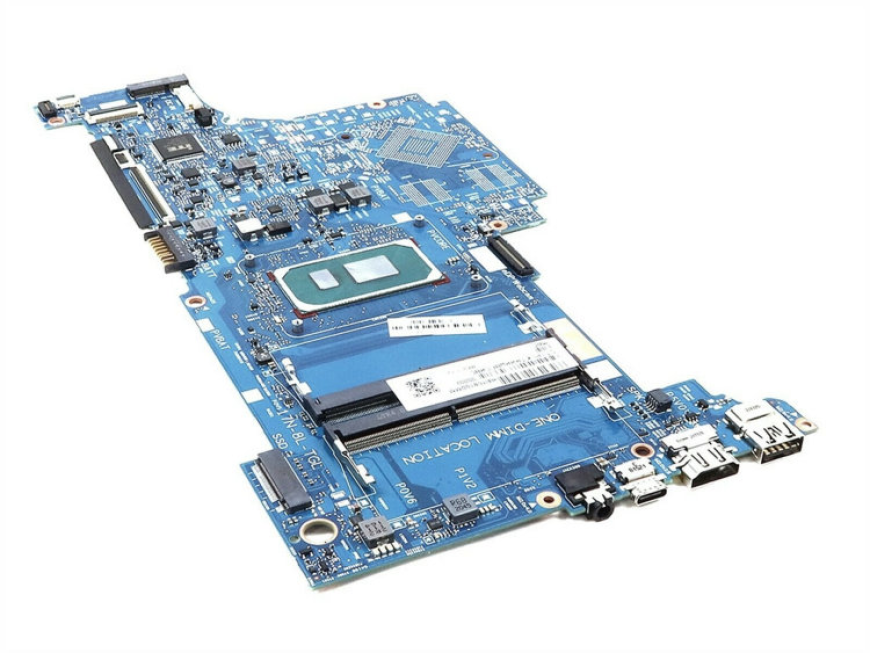
When it comes to the core functionality of a laptop, many users focus on the processor or RAM, often overlooking a crucial component that ties everything together—the motherboard. Laptop motherboards are the central circuit boards that connect all parts of the device, from the CPU and memory to storage, ports, and peripherals. Understanding their role is essential for anyone interested in upgrading, repairing, or replacing internal laptop hardware.
Understanding the Role of the Motherboard
What Is a Motherboard?
A motherboard, also known as the mainboard or system board, serves as the backbone of a laptop. It houses essential components and provides electrical pathways that allow different parts to communicate. In laptops, these boards are designed to be compact and model-specific, meaning they are often unique to each laptop series.
Key Functions
-
Connectivity: Links CPU, GPU, RAM, storage, and ports.
-
Power Distribution: Delivers power from the battery and adapter to internal components.
-
Data Routing: Manages signals and data transfers between all devices.
-
Expansion: Offers limited expansion options like SSD upgrades or Wi-Fi modules.
Components Integrated into Laptop Motherboards
Processor (CPU)
In most laptops, the CPU is soldered directly onto the motherboard, unlike in desktops where it’s often removable. This design saves space but makes upgrades nearly impossible.
Memory (RAM)
Some laptops have RAM soldered onto the motherboard, while others offer SO-DIMM slots. The latter allows for RAM upgrades, provided the board supports higher capacities.
Graphics Card (GPU)
Integrated or dedicated GPUs are also often soldered, especially in ultrabooks and gaming laptops. High-performance machines may include VRAM and cooling elements as part of the motherboard assembly.
Storage Interfaces
M.2 and SATA ports are typically present for SSDs or HDDs. Many ultrabooks use compact M.2 NVMe SSDs to save internal space.
Other Features
-
Wi-Fi/Bluetooth cards
-
Audio chipsets
-
USB controllers
-
Battery connectors
-
BIOS/UEFI chipsets
Common Issues and Repair Options
Signs of Motherboard Failure
-
Laptop won’t turn on or charge
-
Random shutdowns or restarts
-
No display despite power
-
Malfunctioning ports or peripherals
-
Overheating with no obvious cause
Repair vs. Replacement
Minor issues like broken ports can sometimes be repaired. However, severe problems such as power faults, BIOS corruption, or GPU failures often require complete motherboard replacement.
Cost Considerations
-
Repair: £50–£100 (depends on issue)
-
Replacement: £100–£400 (varies by brand and model)
-
Labor: £50–£100 (for disassembly and installation)
Compatibility and Sourcing Tips
Finding the Right Replacement
Laptop motherboards are not standardized. You must match:
-
Brand and model
-
Part number
-
BIOS version (sometimes)
-
CPU and GPU specs
New vs. Refurbished
-
New: Better reliability but often expensive and limited in availability.
-
Refurbished: Cost-effective; ensure it's tested and from a trusted supplier.
Trusted Sources
-
Manufacturer service centers
-
Reputable electronics suppliers
-
Certified refurbishers
-
Professional repair technicians
Can You Upgrade a Laptop Motherboard?
Technically, yes—but it’s not practical in most cases. Since motherboards are model-specific and tightly integrated with other components, upgrades are rare and usually only make sense for high-end laptops where modularity is possible. In such cases, replacing with a newer revision that supports a better CPU or RAM might work, but it involves high costs and risk.
Environmental and Disposal Considerations
Old motherboards contain materials harmful to the environment. Do not throw them in the trash. Instead:
-
Use local e-waste recycling centers
-
Donate to electronics learning centers
-
Return to manufacturers offering take-back programs
Preventing Motherboard Damage
Tips for Longevity
-
Keep vents clean to avoid overheating.
-
Use surge protectors to prevent power spikes.
-
Avoid using laptops on soft surfaces that block airflow.
-
Don’t overcharge the battery.
-
Handle ports and connectors gently.
Maintenance Best Practices
-
Apply thermal paste during reassembly if replacing.
-
Use static-free environments when handling internal components.
-
Regularly update BIOS/UEFI firmware if recommended by the manufacturer.
Professional Installation or DIY?
DIY
If you have experience and the right tools, replacing a motherboard yourself can save money. Always follow a disassembly guide specific to your laptop model.
Professional Help
If unsure, let a certified technician handle it. Mistakes during reassembly can damage internal components or void the warranty.
Conclusion
Whether you're troubleshooting issues or planning a repair, understanding laptop motherboards can help you make informed decisions. These essential components impact performance, compatibility, and the lifespan of your device. If you ever face the need for replacement or repair, choose reliable sources, verify compatibility, and consider professional assistance to keep your laptop running efficiently.