How to Install Skycut Driver for C24 Cutting Plotter?
Skycut driver plays a crucial role in ensuring smooth communication between your system and the C24 cutting plotter, making your cutting tasks accurate and hassle-free.
 Skycut
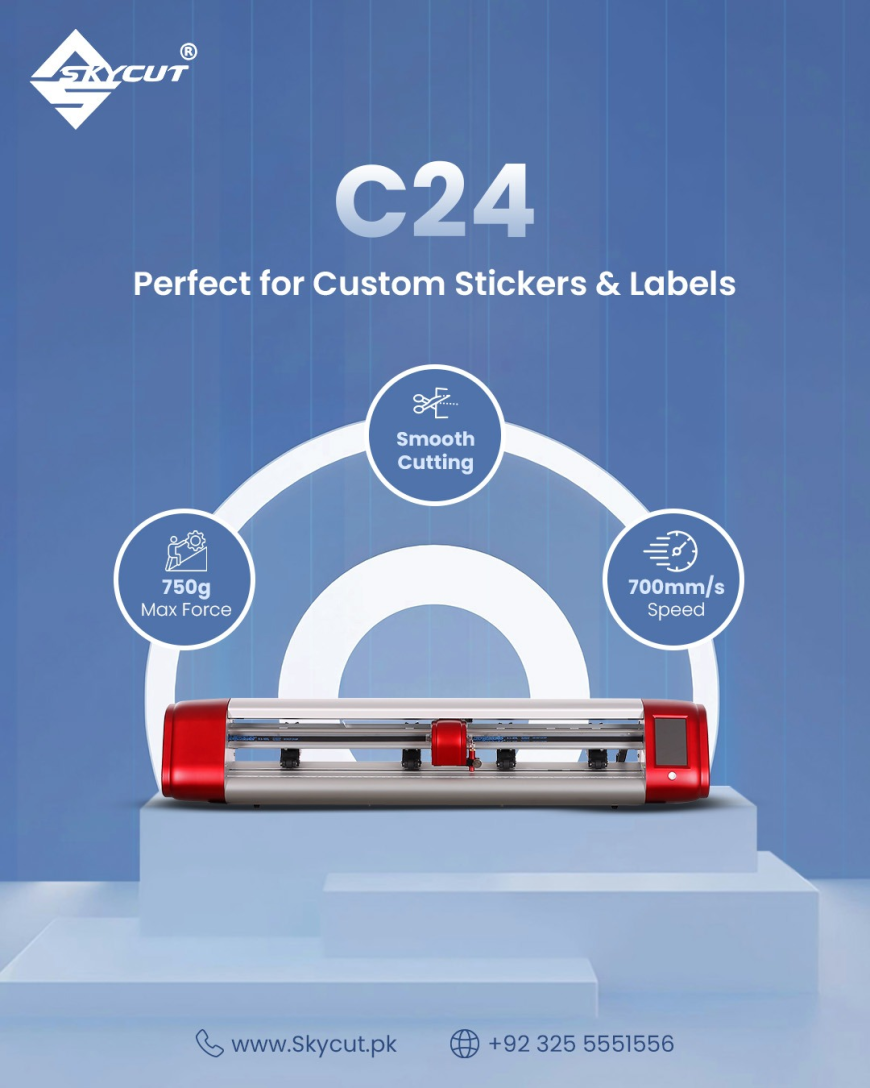
In today’s fast-paced digital printing and signage industry, precision and efficiency are essential. Whether you're running a small design studio or a large-scale production unit, having the right cutting equipment and software setup can significantly improve your workflow. The skycut driver plays a crucial role in ensuring smooth communication between your system and the C24 cutting plotter, making your cutting tasks accurate and hassle-free.
This guide explores everything you need to know about installing, configuring, and optimizing your Skycut setup for professional results.
Overview of C24 Cutting Plotter
The C24 cutting plotter is widely used in the signage and printing industry due to its reliability and high performance.
Key Features
- Advanced servo motor technology
- High cutting accuracy
- Compatible with multiple design formats
- User-friendly control panel
- Suitable for vinyl, stickers, and heat transfer materials
Why Installing the Correct Driver Matters
Installing the correct skycut driver is essential to unlock the full potential of your C24 cutting plotter.
Benefits of Proper Installation
- Smooth and uninterrupted workflow
- Reduced cutting errors
- Better compatibility with design software
- Enhanced machine performance
Step-by-Step Guide to Install Skycut Driver
Follow these simple steps to install the skycut driver successfully:
1. Download the Driver
- Navigate to the support or download section
- Locate the latest version of the skycut driver
2. Install the Software
- Extract the downloaded file
- Run the setup file as administrator
- Follow on-screen instructions
3. Connect the C24 Cutting Plotter
- Use a USB cable to connect the C24 cutting plotter
- Ensure the machine is powered on
4. Configure the Driver
- Open device settings on your computer
- Select the installed skycut driver
- Assign the correct communication port (COM/USB)
Common Installation Issues and Solutions
Even with proper steps, users may encounter minor issues. Here’s how to resolve them:
Driver Not Detected
- Reinstall the skycut driver
- Check USB cable connection
- Restart your system
Plotter Not Responding
- Verify COM port settings
- Ensure the correct device is selected
- Update the driver version
Cutting Errors
- Recalibrate the C24 cutting plotter
- Check blade settings
- Ensure correct file format
Tips to Optimize C24 Cutting Plotter Performance
To get the best results from your C24 cutting plotter, follow these expert tips:
- Always use updated skycut driver versions
- Perform regular machine calibration
- Use high-quality cutting materials
- Keep firmware updated
- Clean the blade and rollers regularly
Compatible Software for Skycut Plotters
The skycut driver supports integration with various design software, allowing seamless workflow.
Commonly Used Software
- CorelDRAW
- Adobe Illustrator
- SignMaster
- FlexiSign
Why Choose Skycut for Cutting Solutions?
Skycut has become a trusted name in the cutting plotter industry due to its innovation and reliability.
Advantages of Skycut Products
- Durable and high-performance machines
- Easy-to-use software integration
- Strong technical support
- Ideal for beginners and professionals
Conclusion
Installing the skycut driver correctly is the first step toward achieving precise and efficient cutting results. When paired with the powerful C24 cutting plotter, users can streamline their workflow and produce high-quality designs with ease.
By following the proper installation steps and maintenance tips outlined above, you can maximize your productivity and ensure long-term performance from your Skycut equipment.